
What You’ll Need:
-
A computer (examiner device) with a modern web browser and Bluetooth capability.
-
An iPad (examinee device) running iOS 16 or higher.
-
Internet access for one-time download of necessary apps and to download test assignments to administer in offline mode.
-
An Apple App Store account (an app to enable Bluetooth communication while testing offline must be downloaded)
Browser Requirements:
- On the computer, you’ll need to use a current version of Chrome or Edge to install the
Riverside Score shortcut for offline access. -
On the iPad, Safari (version 16 or later) is required.
Step 1: Set Up Your Computer (Examiner Device)
-
Navigate to: https://riversidescore.com
-
Download the browser app shortcut (this appears in the right hand side of the URL bar)
-
Click the app install icon in Chrome or Edge.

-
Click Install when prompted and pin the shortcut to your taskbar.

-
This shortcut ensures fast access to the platform, even when offline.
Step 2: Set Up Your iPad (Examinee Device)
IMPORTANT NOTE: The Riverside Score Offline app must be installed and open for offline sessions to work.
-
Open the Apple App Store on the iPad.
-
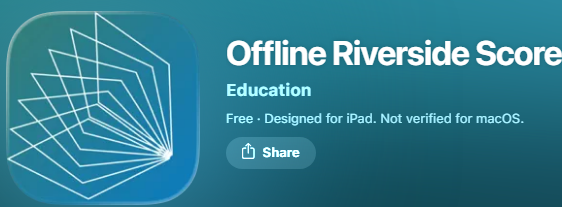
Search the Apple App Store for “Riverside Score Offline” (exact listing name). Download and install the app.
-
Download and install the app.
-
Open the app to activate permissions.
Additional Notes:
- Once you have the shortcut downloaded on the examiner's device, you no longer need to access riversidescore.com through a browser. You can use the shortcut for online and offline needs.
- To begin offline testing view article: Woodcock-Johnson V (WJ V) - Using Offline Mode