
What You’ll Need:
Complete set up in article: Woodcock-Johnson V (WJ V) - Setting up Offline Mode
Step 1: Download any test assignments you wish to administer in Offline Mode (Internet required)
-
Navigate to your Riverside Score shortcut and login to the WJ V

-
Create your test assignments that you will like to administer in offline mode.
-
Download the assignments created for offline mode by click the 3 dots under the actions tab then clicking download.
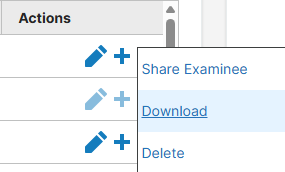
NOTE: The same device and browser used to download a test assignment must be used when administering offline
Step 2: Launch Offline Mode (Internet is not required)
IMPORTANT NOTE: Ensure Bluetooth is enabled on both your computer and iPad
-
Open the Riverside Score shortcut on the examiner's device.
- Toggle Offline Mode (On)

-
You will see this dashboard in offline mode with any assignments that were downloaded while connected to the internet in step 1.

-
On the iPad, open the Riverside Score Offline app to make it detectable.
-
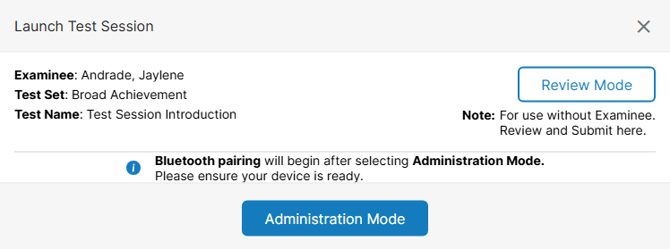
From the examiner's device, select the assignment you would like to administer by clicking on the name of the test set. You will now get the Launch Test Session screen.
-
Click on Administration Mode and pair the devices.

- Once paired, the assessment will launch and can proceed without an internet connection.
- Make sure the iPad app remains open and active throughout the session.
Step 3: Retrieving data once back online (Internet required)
- Data will sync automatically when an internet connection is available again.
- If this does not automatically upload. You will need to click the upload arrow under the actions tab in Offline Mode.
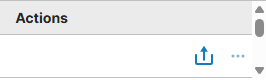
- Once uploaded, it will not longer appear in Offline Mode. Turn Offline Mode off.

- The assignment will now appear on the dashboard.
Additional Notes:
- Once you have the shortcut downloaded on the examiner's device, you no longer need to access riversidescore.com through the browser. You can use the shortcut for online and offline needs.