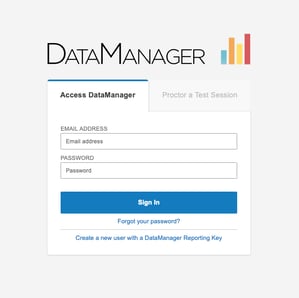
Signing in to DataManager
➢ Go to http://www.riversidedatamanager.com/
➢ In the Email Address field, enter your email address
➢ In the Password field, enter your password
Navigating DataManager
DataManager has an easy-to-use layout and a permissions-based system to help you efficiently get to the tools and information you need.
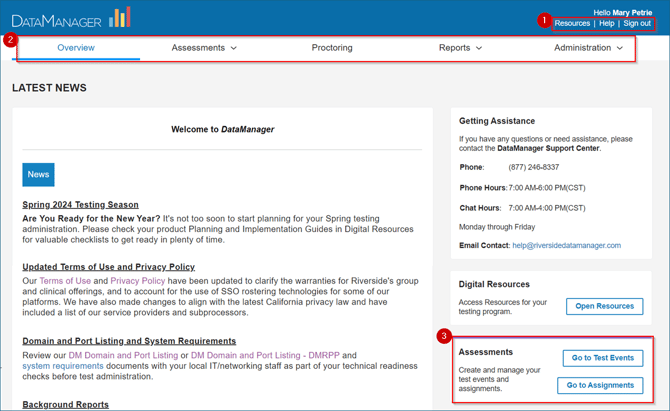
- Banner: Located at the top of all DataManager pages and contains the following links:
• Resources: Opens the Digital Resources library of ancillaries and user guides
• Help: Launches the DataManager online help system
• Sign out: Signs you out of DataManager - Top Navigation Bar: This area below the banner provides direct links to applications within DataManager, based on your user permissions.
- Right Navigation Cards: On the right side of the Overview screen, you may also click a card to access an application in DataManager.
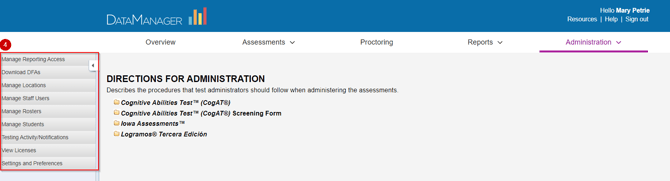
- Left Sub-Navigation Menu: Located on the left side of some applications in DataManager, this area provides links to common tasks.
Accessing Digital Resources
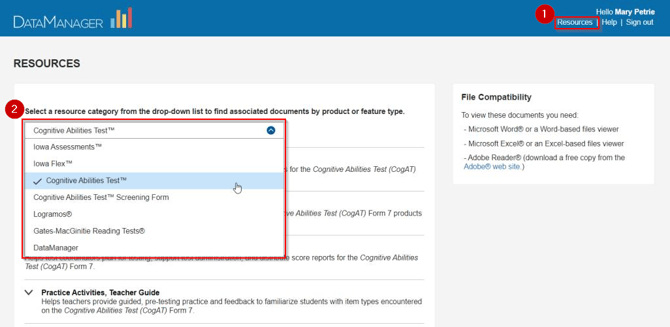
- Click the Resources link from the banner of any page or the Digital Resources Right Navigation Card on the Overview screen.
- The Resources library opens in a new browser tab. Click on the drop-down list to view folders of ancillaries for your assessments, DataManager user guides, and file formats. Click on the title of a document to download it.
Accessing DataManager Online Help
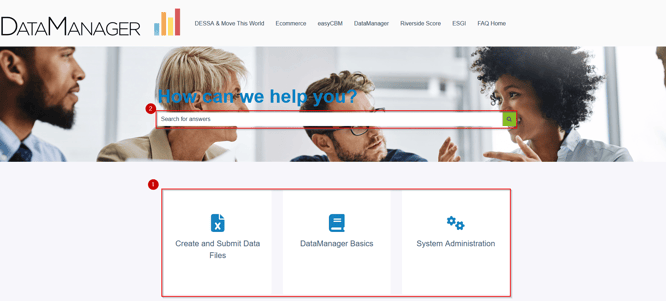
- Click the Help link from the banner of any page to access the DataManager Online Help page. Click on a topic for information on DataManager applications and instructions for common tasks.
- Additionally, the Online Help system provides a search function to help you locate specific content more quickly.
Accessing Test Events
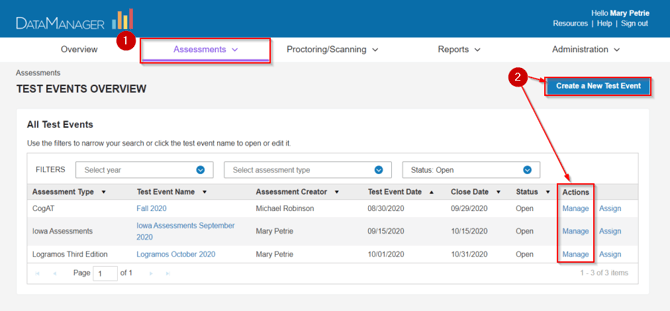
- If testing online or using the OMR scanning option, use the Top Navigation Bar on any page or the Assessments Right Navigation Card on the Overview screen to access Test Events through the Assessments application.
- The Test Events Overview page provides search filters to find and Manage an existing event, and a tool to Create a New Test Event.
Accessing Reports
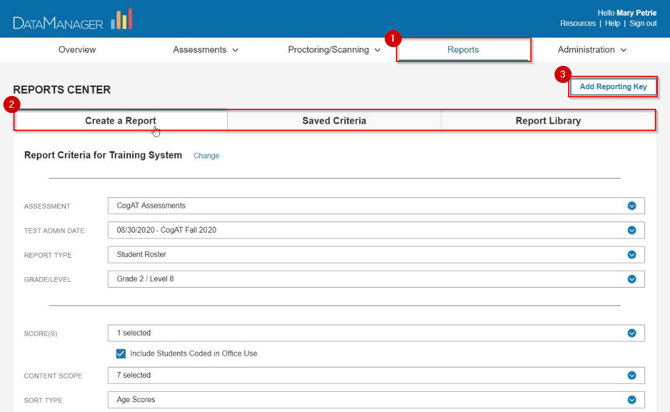
- To view your assessment results use the Top Navigation Bar on any page, or the Reports Right Navigation Card on the Overview screen to access the Reports application.
- On the Reports Center screen you will be able to Create a Report based on a menu of drop-down options for your test event and assessment type, view previously Saved Criteria, and pick up your scheduled reports from the Report Library.
- If testing using paper/pencil answer documents, click Add Reporting Key and enter the key provided by your administrator to access reports for additional test events or locations.