
Scoring Service Print style reports are useful for downloading and printing and for distributing to parents. They are run in the background and are available in the reports library when completed. They stay there for 5 days and are removed by the system after that.
The following reports are available in the background print style. All other reports can be run in the background to generate a pdf.
List of Student Scores
Student Profile Narrative
Individual Performance Profile
Group Summary
Group Performance Profile
Group Item Analysis
Clas Item Response Record
How to Run the reports:
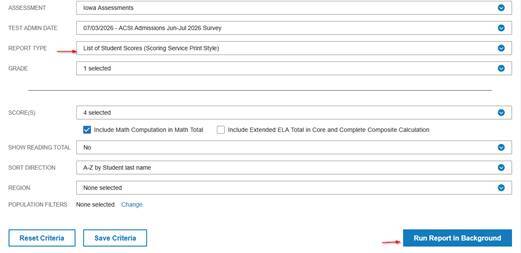
Once logged into your account please click on to the Report tab. Select the report you want to run at the background (to generate the print file) from the Report Type drop down. Select all other criteria regarding grades and scores you want included on those reports. Click on Run Report in Background which is in blue tab towards the bottom of the screen
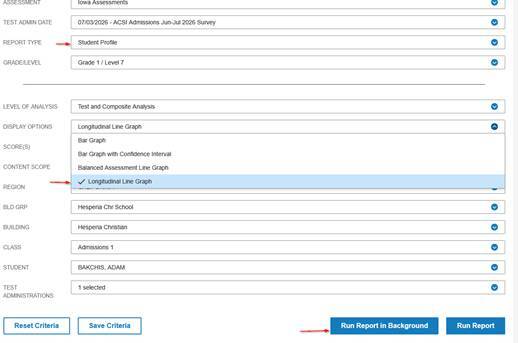
To generate the longitudinal reports for printing, please select Student Profile from Report type and Longitudinal Line Graph from the Display options and run the report in Background.
Once these reports are run, they will be available in the Report Library tab. It should have the status of complete.

Why does my report not complete or take more time?
The timing of running these reports do matter on how long it takes to complete. Mid-Morning to afternoon are very busy times where multiple schools are trying to access those. The best time would be later in the afternoon or early in the morning.