
This article applies to WJ IV. Stream Audio for a Complete Test
To stream audio for a test:
1. Sign in to https://www.riversidescore.com. The Riverside Score Dashboard appears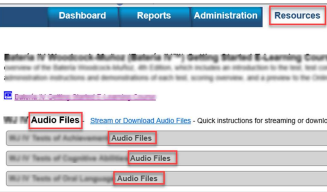
2. In the On Riverside Score header, click the Resources tab. The Resources page appears. Audio Files is the second heading on the page. The Audio Files for tests are listed on the grey bars under it. The descriptions of the audio files depend on the product you are using.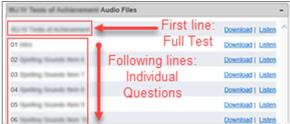
3. Click the grey bar for the test you want to perform. A list containing the full, continuous test (top line) and individual test items (following lines) appear below the bar.
4. Click Listen on the first line to play the entire test in a continuous stream. The test row expands to show an audio player and individual test questions.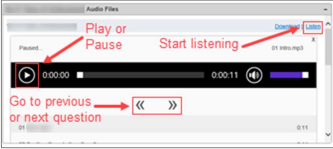
5. Click the play/pause button (forward arrow) on the left of the player to start the audio. It plays one question after another continuously if you are playing the test.
- Use the double arrows to jump to the previous or next question.
- To play an individual question, click a specific test item and click Listen on that line. The audio player appears below the question and plays it once.
To download audio for a test on your smartphone, notebook, or laptop:
1. Sign in to https://www.riversidescore.com. The Riverside Score Dashboard appears.
2. In the Riverside Score header, click the Resources tab. The Resources page appears. Audio Files is the second heading on the page.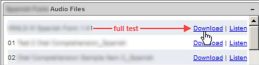
3. Click the Download link corresponding to the full test description.
4. Follow the prompts to download and extract files for your device:
- Windows-based laptops, notebooks, and Android phones: Open or Save the .zip file, and extract the contents to your preferred folder.

- iOS devices: Extract the .zip file using your Unzip app or your iCloud account. For example, click Open in “iZip” in the example on this page.
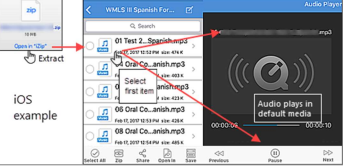
5. Click the first file of the extracted files. Your default audio player opens. Depending on your settings, the test begins playing automatically. If not, click the play button (forward arrow) on the player. The recording plays the introductory message, sample questions, and test items sequentially without stopping.
6. (Optional) Run through the test using the pause, resume, and skip controls on the player to familiarize yourself with the different methods of working through the test items.