
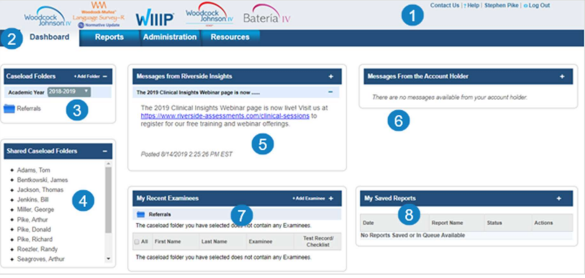
1. Banner: On the Woodcock-Johnson IV (WJ IV) Dashboard, the banner contains logos of the tests your organization has access to and links to Contact Us, Help, User Profile, and Log Out.
2. Navigation Tabs:
-
Dashboard returns you to the dashboard from any page.
-
Reports allows you to set report options and create reports.
-
Administration launches tasks for managing caseload folders, examinees, and other roles and components,
-
depending on your role and assigned privileges.
-
Resources provides links to tutorials, ancillaries, and other descriptive aids.
3. Caseload Folders: Contains at least one folder, initially named Referrals, and any others that you added. The Academic Year list allows you to view folders created in a given academic year. To add a new folder, click the Add Folder link located in the banner area.
4. Shared Caseload Folders: Provides access to examinees to which you are granted access. You can view the list of examinees for which you have shared access by clicking My Shared Folder. The list of shared examinees appears in the My Recent Examinees field.
-
Administrators see the folders for all examiners organized by the last names.
-
Account holders, by default, see all existing examiners, caseload folders, and examinees.
5. Messages from Riverside Insights: Displays important information from Riverside Insights. Up to ten messages may appear at a time with the first 50 characters of each message appearing in bold text in the message header bar.
6. Messages from the Account Holder: Provides up to ten messages from the organization’s account holder. The first 50 characters of each message appear in bold text in the message header bar. The account holder specifies the date and time that each message appears.
7. My Recent Examinees: Lists the examinees contained in the selected folder in the Caseload Folders area or the Shared Caseload Folders field; displays icons that allow you to edit, delete, move, share, or add a test record. The Examinee and Test Record columns display actions you can perform for the shared examinees.
8. My Saved Reports: Displays links to saved reports for a period of 14 days after the reports are run. To open or save a report, click the view or download icon.