
To move examinees:
This article applies to WJ IV. To begin moving one or more examinees from one caseload folder to another, go to your list of examinees. You can move examinees in several ways:
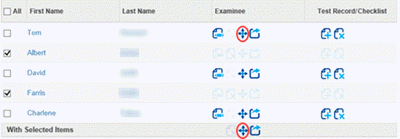
- Click the move icon next to a single examinee to move only that examinee.
- Select multiple examinees using the checkboxes, then click the move icon in the bottom action bar to move all selected examinees at once.
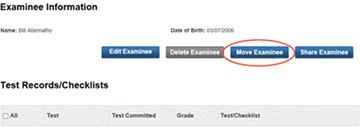
- From the Examinee Information page, click the Move Examinee button. If the button appears gray, the examinee cannot currently be moved.
- After clicking the move option, the Select Caseload Folder page opens.
- Select the appropriate year from the Year dropdown menu. Once the year is selected, the list of available caseload folders for that year will appear.
- Select the caseload folder you want the examinee(s) moved to.
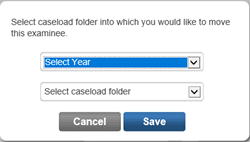
- Click Save to complete the move.
- A confirmation message will appear stating: “The examinee has been moved.”