Note: You can use this procedure to add a new examiner to your system. To do this, instead of searching for and editing an existing user, add a new examiner, enter all required (*) field information, and perform steps 5 - 7 of this procedure.
To assign or change Woodcock Interpretation and Instructional Interventions Program (WIIIP) permissions for a user:
1. Sign in to https://www.riversidescore.com using your username and password. The Riverside Score Dashboard appears.
2. In the header, move the pointer over the Administration tab, select Examiners and click Search/Edit. The Search Examiner page appears.
3. Enter parameters to find the user whose WIIIP permissions you want to change and click Search.
4. Click the Edit icon for the user in the Examiner Activities column. The Edit Examiner Information page opens with the user’s information. At the bottom of the left column, a WIIIP Permission field appears.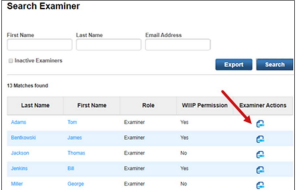
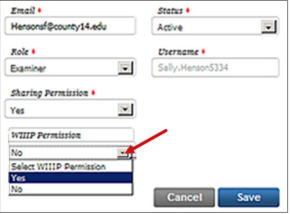
5. Apply WIIIP permissions, as appropriate. If rights were never assigned for the user, Select WIIIP Permission appears in the field indicating that the user does not have WIIIP rights.
-
Yes: Select to apply WIIIP permissions
-
No: Select to remove WIIIP permissions.
6.Click Save. A confirmation message appears.
7. Click OK to confirm the WIIIP permission changes.
Note: If you added WIIIP rights (Yes), the user can use WIIIP checklists and the Comprehensive report. If you revoked a user’s rights (Yes to No), the user can no longer administer and draw from WIIIP resources.
To view WIIIP license availability and current distribution to users:
1. Sign in to https://www.riversidescore.com using your username and password. The Riverside
Score Dashboard appears.
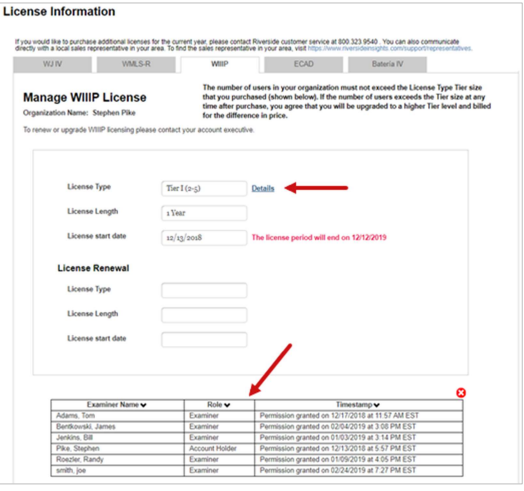
2. In the header, move the pointer over the Administration tab, select Products and click License Information. The License Information page appears.
3. Click the WIIIP tab. Information for WIIIP License Type (tier, including the number of licenses permitted in the tier), License Length (duration), and License start date appear.
Note: The end date appears in red text after the License start date field.
4. Click the Details link to see which users are assigned WIIIP licenses at the bottom of the page.
-
Usernames, roles, and the dates and times the users were granted permissions appear in a table. To close the table, click the x in the top-right corner of the table.