
To export data:
1. On the Dashboard, move the pointer over the Reports tab and click Data Export. The Data Export page appears. Fields with an asterisk ( * ) are required.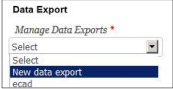
2. In the Manage Data Exports list, select an existing export that has already been configured or select New data export.
For a new report, the Name your export dialog box appears.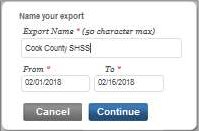
3. Enter the following information.
-
Export Name: Type a name for the data export
-
From / To: Click in each field to view a calendar and select start (From) and end (To) dates for the data export
4. Click Continue to save the data export settings and display available products.
5. Select a product (ECAD, Woodcock-Johnson IV (WJ IV), Bateria IV, or WMLS–R) from the Product menu. The Examiner Selection field opens below the Product field.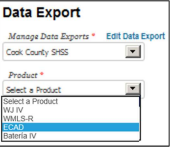
For Woodcock-Muñoz Language Survey III (WMLS III), the Product field defaults to WMLS III and cannot be changed. A Building Level field opens below it without you taking any action.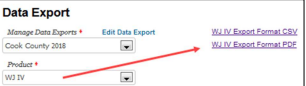
Note: As soon as you have entered your product, links to lists of variable definitions appear (for WJ IV, Tests of Early Cognitive and Academic Development (ECAD), Bateria IV, and WMLS III). Click a link to view a list of variable names, types, lengths, and long descriptions (labels) to help you interpret the exported data.