
In Woodcock-Johnson IV (WJ IV), you can navigate the Digital Test Record (DTR) and view information on the page header.
A. Click one of these dropdowns to access other DTRs and the parts of this DTR.
B. Commit Test Report – Click to commit the record (there is no Save link because the DTR is automatically saved as you type). You can click Run Report to run a report after you have committed the DTR.
C. Contact Us (email and phone), Help (Online Help), Log Out (exit to Log In screen) and Home (Dashboard).
D. The status, In Progress, appears here. Saved appears when you have entered any information. Committed will appear when the test has been committed.
1. Complete the Identifying information, such as date of test, examiner, and school year.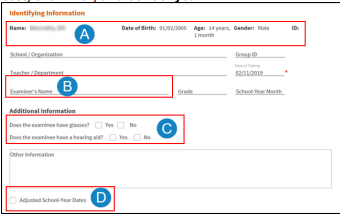
A. Information about the examinee appears at the top of the page.
B. Examiners Name can be added two ways:
• Start typing. Names in the system will appear. Click on the one you want as the examiner.
• Type a name and then press the Tab key. If the name is not in the system, a message appears asking if you want to add the examiner. If you click Yes, the Add Examiner form opens. Complete the form and click Save. The examiner appears in the field.
C. If you click Yes for either of these two questions, additional questions appears asking whether the examinee will be using glasses or hearing aids during the test.
D. If you click in the checkbox for Adjusted School-Year Dates, fields for the start and end dates appear. When you click in either field, a calendar appears. Select a dates for each field.
2. Complete the Language Background Information fields.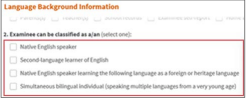
-
There are seven questions in the Language Background Information section that define the examinee’s language background, proficiency, and needs. The second question (shown here) determines which of the following questions will be active.
3. Open the test.
Within the DTR, there are a number of tests. You can scroll down or access tests from the top of the page.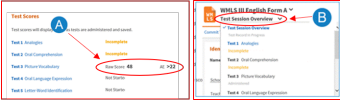
A. Scroll to the Test Scores section. The status for the tests and scores for completed tests appear.
B. Click the dropdown list of sections at the top of the page.
4. Score the test.
A. Basal Obtained and Ceiling Obtained appear when the scoring meets the programmed standards.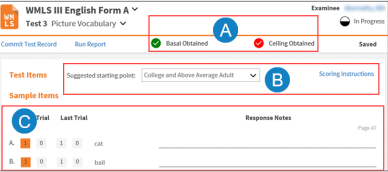
B. On most tests, you can select from the Suggested Starting Point dropdown list to jump to the suggested starting point. Scoring Instructions gives information about basal and ceiling standards.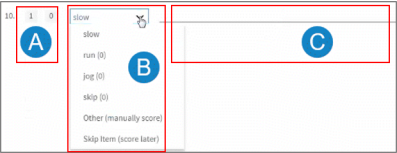
C. Click a test item to score the test – 1 for correct and 0 for incorrect. Enter response notes if you like.
5. Score the individual items.
When you select from the Suggested starting point dropdown list, you go to the starting question.
A. Click 1 (correct answer) or 0 (incorrect answer) next to each item.
B. Items with multiple response options have an arrow button next to the response. Tap the response or arrow button to select the examinee's response from a list. You can also click Other (manually score) and select either 1 or 0.
C. You can enter a response or comment for an item on the comment line.
Note: At certain points (for example, if you skip a question), you may be sent to a previous question to continue testing.
6. When the Ceiling Obtained message appears, the test is completed and Ceiling Obtained appears at the top of the screen.
7. For the entire test, you can add observations at the bottom of the page. There are several questions for which you can select a response or add your explanation. You can also add additional comments.
8. The test is saved automatically as you type. Click Commit Test Record to commit the test so it can be used in reports.
• If you have completed the required test scores, the test will be committed, and you can now run reports on the test.
• If you have not completed the required information, a message will appear. You will have to complete the missing information before you can commit the test.