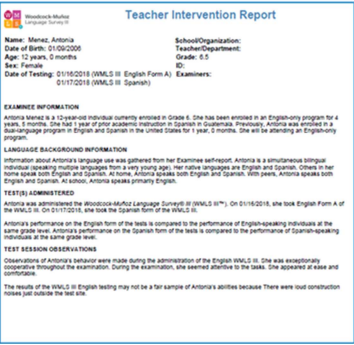
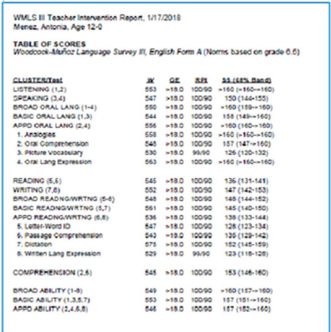
To create a Woodcock-Muñoz Language Survey (WMLS III) Teacher or Parent Intervention Report:
1. In the header, move the pointer over the Reports tab to display your options and click Create Report. The Create Report page appears with two fields, Product and Report Type. The Product
menu contains only the Woodcock-Muñoz Language Survey III (WMLS III) option.
2. From the Report Type menu, select Parent Intervention Report or Teacher Intervention Report. The page refreshes with filters relevant to the Report you selected.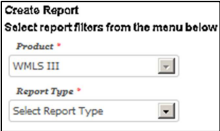
Note:
- Fields with an asterisk (*) are required.
- For fields without down arrows: Click inside fields to view available values and make your selections. To close the field, click the field again or scroll down and click Close.
3. Select the examinee by clicking in the Examinee Selection field and doing one of the following: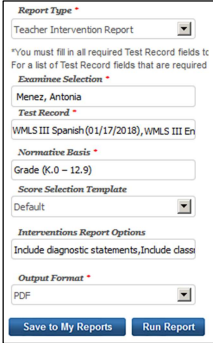
-
Type the first few letters of an examinee’s first or last name and press Enter to view matches.
-
Click the arrows beside the caseload folders to view examinees with committed test record data.
-
When you find the examinee, click his or her name.
4. Click inside the Test Record field to view committed test records for this examinee, then select the examinee’s test record(s) for the report. You can choose a single test record or, if available, one test record from each language (English and Spanish).
Note: To ensure valid comparisons of English and Spanish tests, the maximum time lapse allowed between selected test records is 30 days.
5. From the Normative Basis field, select Age or, if available, a grade range.
6. (Optional) The Score Selection Template field allows you to choose the
types of scores and qualitative descriptors to display on your report. Select:
-
Default to report only default scores
-
New Score Selection Template to link to the Add Template field and specify scores to include in a new template. See the online help for detailed instructions.
-
Saved templates to run a report using a previously saved template
7. For Intervention Report Options, select the interventions to include on the report.
Options vary depending on the examinee’s scores, language and academic background, class level or age, and the type of report. See the online help for more information.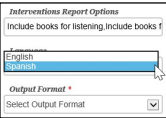
8. Parent Intervention Report only: Select English or Spanish from the Language drop-down menu for the report. The default is English.
9. For Output Format, select PDF.
10. When all filters are selected, click one of the two buttons at the bottom of the page:
-
Save to My Reports, type a name for the report, and click Save. The report is available on your Dashboard in the My Saved Reports box for a period of 14 days.
-
Run Report to generate and view the report as a PDF file.