IMPORTANT: Report options depend on the products available to you as well as the selections you make as you create your report.
To create a Roster report:
1. In the Riverside Score header, move the pointer over the Reports tab and click Create Report. The Create Report page appears with two fields, Product and Report Type.

2.Select your product from the Product drop-down menu.
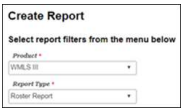
3. From the Report Type menu, select Roster Report. The page reloads with filters relevant to the Roster Report.
Note:
-
Fields with an asterisk (*) are required.
-
For fields without arrows: Click inside fields to view available values and make your selections. To close the field, click the field again or scroll down and click Close.
4. From the Test Record menu, select the test for results you want to view. You must specify the grade level in the Test Record field for the examinee’s data to populate in the Roster Report.
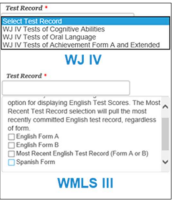
Note: You can only choose one test. There are different selection options for Woodcock-Muñoz Language Survey III (WMLS III) and Woodcock-Johnson IV (WJ IV).
5. From the Score Selection Template menu, select one of the following:
-
Default allows you to run a report with only including the default scores.
-
New Score Selection Template provides the Add Template link, which allows you to specify and save the scores to include using a new template.
-
Saved templates allows you to run a report using scores from a previously saved template.
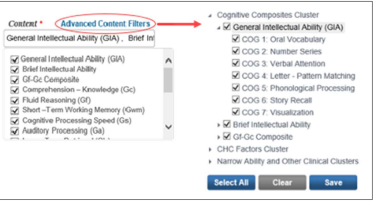
6. Click in the Content field to view and select the content to include in the Roster Report. You must select at least one cluster. All clusters are selected by default. You can click Advanced Content Filter to select more detail.
7. The only Output Format for the Roster Report is Excel and appears as the default.
8. Click Continue. The next page of the report creation appears.
9. Select the report filters: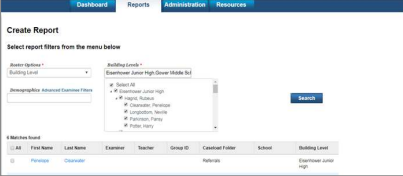
a. From the Roster Options drop-down menu, select the report filter from the available options.
b. (Optional) While the Demographics field is optional, it must be completed on the Examiner page.
c. Click Search. The list meeting the filter selections appear.
d. Click the check boxes, as appropriate, to include or click the All check box at the top of the list.
10. Once you select the examinees, click Save to My Reports. The name Your Report dialog appears.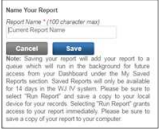
Note: We recommends that you save the report to your desktop as a snapshot in time.
The data is always available and the report pulls the current test administrations that can
change when run at a later date and new administrations occur.
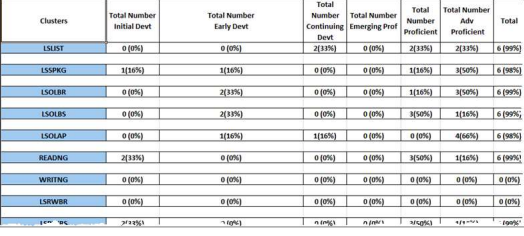
The Roster Report displays in Excel by examinee, grade, and cluster.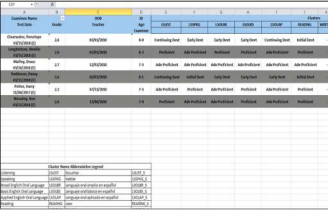
-
Excel is the only format option.
-
The option to edit the Roster Report only allows you to edit the report name.
The Group Report shows overall performance by cluster.