
IMPORTANT: Report options depend on the products available to you as well as the selections you make as you create your report.
To create a Woodcock-Johnson IV (WJ IV) or Tests of Early Cognitive and Academic Development (ECAD) Comprehensive report:
1. In the Riverside Score header, move the pointer over the Reports tab to display your options and click Create Report. The Create Report page appears with two fields, Product and Report Type.

2. From the Product menu, click your product name. The Create Report page appears with two fields, Product and Report Type.
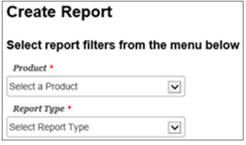
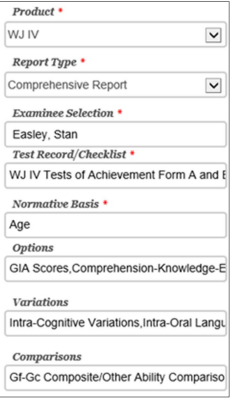
3. From the Report Type menu, select Comprehensive Report. The page refreshes with filters relevant to the Comprehensive Report for your product.
Note:
-
Fields with an asterisk (*) are required.
-
For fields without arrows: Click inside fields to view available values and make your selections. To close the field, click the field again or scroll down and click Close.
4. Click in the Examinee Selection field and do one of the following to search for the examinee:
-
Type the first few letters of an examinee’s first or last name and press Enter to view matches.
-
Click the arrows beside the caseload folders to view examinees with committed test record data.
5. From the Test Record/Checklist field, select at least one test record and any other records or checklists to include on the report.
6. (WJ IV only) From the Normative Basis field, select Age or, if available, a grade range.
7. (Optional) Select values for the following fields: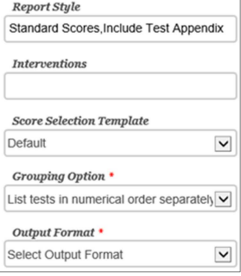
-
(WJ IV only) For Options, select scores to include on the report.
-
(ECAD only) For Scores for Assessment of Early Development
-
Delays, select delay measurements to use for the report.
-
For Variations and Comparisons, select additional score-related information for the report.
-
For Report Style, select an analysis based on Standard Score (SS) or Relative Proficiency Index (RPI); leave the default Include Test Appendix to get a detailed analysis of test scores.
-
For Interventions, click inside the empty field to generate recommendations for the examinee. Select the check box(es) for the interventions you want and the buttons at the bottom of the box to complete this entry.
8. For the Score Selection Template field, choose the types of scores and qualitative descriptors to display on your report. Select:
-
Default to report only default scores.
-
New Score Selection Template to link to the Add Template field and specify scores to include in a new template. See the online help for detailed instructions.
-
Saved templates to run a report using a previously saved template.
9. Using the Grouping Options menu, select an option to specify the test report display.
10. Using the Output Format menu, select the report format (PDF, Web Page, or Word).
11. When all filters are selected, click one of the following buttons at the bottom of the page to complete the process of creating a Parent report.
-
Save to My Reports, type a name for the report and click Save. The report is available on your Dashboard in the My Saved Reports box for a period of 14 days.
-
Run Report to generate and view the report.
-
PDF and Word reports open in their respective applications.
-
Web Page reports open in the Reports tab.