
Before You Begin: Identify or add the caseload folder for the examinee in the Woodcock-Johnson IV (WJ IV).
To add WJ IV examinees:
1. Sign in to https://www.riversidescore.com using your username and password. The Riverside Score Dashboard appears.
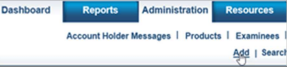
2. In the header, move the pointer over the Administration tab,
Manage Examinees, click Add. The Add Examinee Information page appears.
3. Enter the following information. The following fields are
required.
-
General Information
-
First and Last Name
-
Gender: Select a gender
-
Date of Birth: Click in the field and locate the date of birth on the calendar
-
Caseload Folder: Assign a caseload folder
-
Building Level Association ( Woodcock-Muñoz Language Survey III [WMLS III] users): Assign the building level for this examinee.
Demographic/Programs: Enter optional information as appropriate.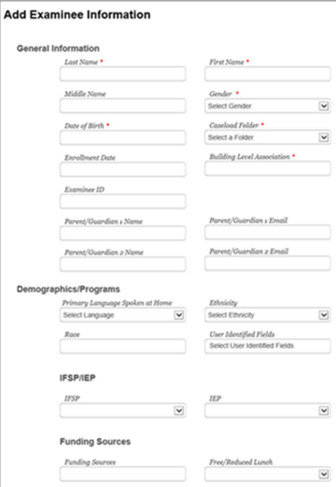
Note: Once you enter all required fields, the Save and Save and Add Another buttons are enabled.
4. Click Save and Add Another to enter additional examinees or click Save to end the process to add users.
Sharing Rules
-
An Account Holder can share all examinees.
-
An Administrator or Examiner, can share an examinee if you meet both of the following criteria:
-
Your own sharing permissions are enabled.
-
You created the examinee or you are a shared user of the examinee with edit permissions of the type of access you are sharing (examinee demographics or test records).
-
To share an examinee:
1. Locate and display the examinee using one of the following methods.
-
Conduct an examinee search.
-
Browse your caseload folders.
2. Click the Share icon. The Share an Examinee page appears.
3. From the list of users, select the check boxes for the names of those you want to share examinee or test records information.
To share multiple examinees information:
a. Click the check box to the left of each examinee’s name in the My Recent Examinees box.
b. Click the Share icon in the bottom row.
The Share an Examinee page appears. The settings you choose apply to all selected users.
4. From the select the permissions you would like to provide to shared users of this examinee box on the right, select the permissions to grant to the selected users are to be granted for the shared examinee and click Save. The shared examinee is available in the My Shared Folder Caseload folders of the selected users.
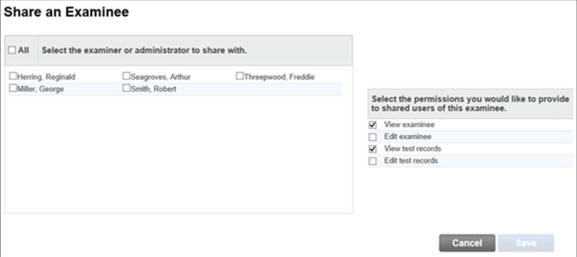
Note: Default viewing permissions are used as a precautionary measure. The default permissions allow shared users to view examinee information without the ability to make changes.