
- First, be sure that the Woodcock-Johnson IV (WJ IV) examinee for whom you are recording data has been added to Riverside Score.
- Adding a single test record allows you to move directly to the test record data entry page
- Adding multiple test records opens the Examinee Information page. To add test record data, click the name of the test to which you want to add data
- Test record data can be saved or committed
- You can save test record data that is incomplete or likely to be edited
- Only commit test record data that is complete and ready for report creation. Once committed, the test date field is locked and edits can only be made for another 90 days.
To add Test Records:
1. Sign in to https://www.riversidescore.com using your unique username and password. The Riverside Score Dashboard appears.
2. In the Caseload Folder or Shared Caseload Folder, click the folder containing the examinee for which you are adding the test record. The list of examinees in the selected caseload folder appears.
3. In the My Recent Examinees field, locate the examinee and click the Add icon. A list of test records appears.
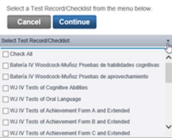
4. In the Select a Test Record list, select the test record form to be added and click Continue. The selected test record page appears. Examinee information fields appear at the top of the page. When you click in a field, instructions for that field are provided below the header of the test. Fields with an asterisk (*) are required.
Note: For each examinee, you can only add the same test record form twice each year.
5. Complete the examinee information:
-
For the use adjusted school year field: if different from August 16 to June 15, date of testing, and grade are necessary to obtain normative scores.
-
Date of Testing is the only required field.
-
In the Examinee field, start typing. Any examinees in the system that match will appear. You can select one.
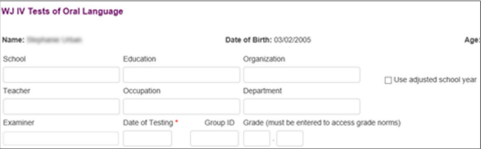
The test score sections are provided below the examinee information. These sections and fields vary depending onthe Product and Test Record selected.
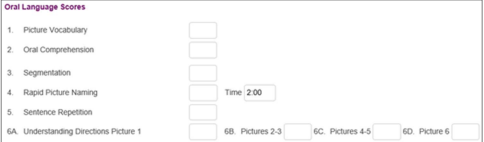
6. Click in each applicable score field and record the scores for each test. Refer to the scoring instructions provided at the top of the page for guidance.
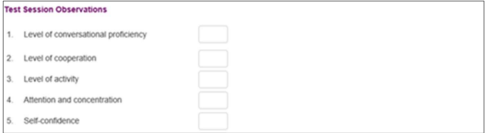
7(Optional) Scroll to the Test Observations section and record the scores.
8. Click one of the following buttons at the bottom of the page to complete the process to add test records.
-
Examinee Information to access additional options for the examinee.
-
Save to save the test record entries. The record is available for edits but not available for report creation.
-
Commit Test Record to save the test record entries and make them available for report creation.
-
Run Report to advance to the Create Report page (This button is active only if you have committed the test record.)
