
On the License Information page, account holders and administrators can:
View the number of licenses available, saved, and committed for each purchased product type and each individual test within that product.
View the names, roles, and timestamps of examiners who have committed test records or who have been granted access to Woodcock Interpretation and Instructional Interventions Program (WIIIP) and Woodcock-Muñoz Teacher and Parent Intervention System (TIPS).
For most products, you will see a link to the Riverside Insights e-commerce site to order additional test records online.
To view license information for your organization:
Hover over Administration, and then Products, then click License Information. The License Information page opens.
Select your product: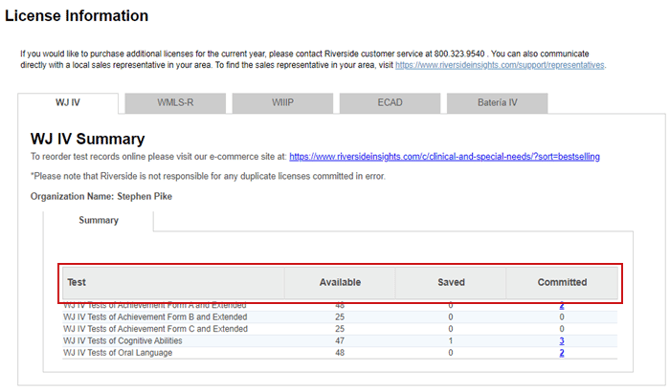 Screenshot: License Information summary table showing Available, Saved, and Committed license counts for each purchased test.
For the Tests of Early Cognitive and Academic Development (ECAD), Woodcock-Johnson IV (WJ IV), Woodcock-Muñoz Language Survey-Revised (WMLS-R), and Woodcock-Muñoz Language Survey III (WMLS III) tabs, a summary table appears with the following information:
Test – the title of the specific test or battery administered
Available – number of remaining scoring licenses for test records available for use
Saved – number of scoring licenses for test records that contain data but have not yet been committed
Committed – number of scoring licenses for test records that have been saved, committed, and counted as the number of licenses used
Click the number in the Committed column to view details.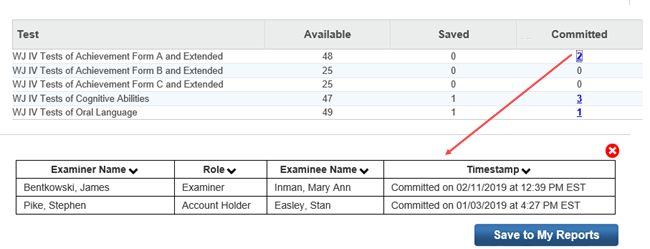 Screenshot: License Information summary table showing expanded details of Committed licenses.
WJ IV Summary: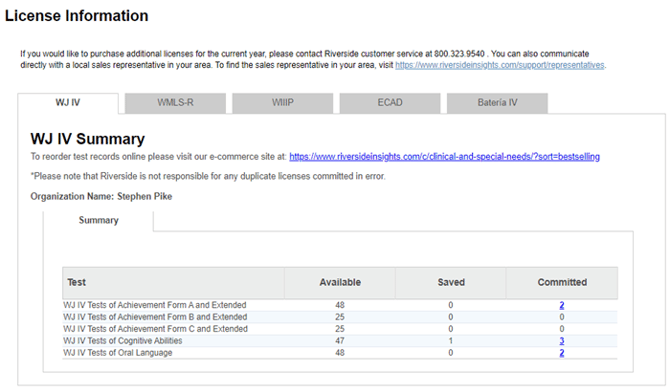 Screenshot: License Information summary table showing tabs for each product.
License Information for WIIP: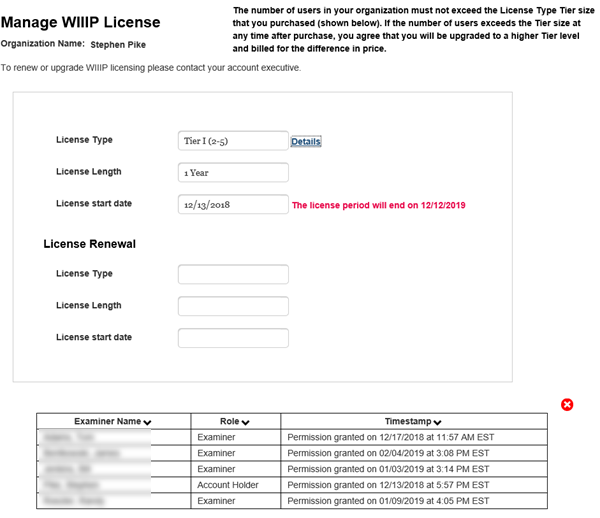
Screenshot: License Information summary table showing expanded details of WIIIP Committed licenses.
License Type – the number of examinees allowed by the purchase agreement, specified as individual (one) or multiple (in tiers, with allowable number of examinees in parentheses)
License Length – the length of time for which the license is valid
License start date – the date on which the license became active; the license expiration date appears in red text beside the start date
License Renewal – displays the same fields as those above it, but applies to licenses that your organization has purchased for a future date. When the renewal date arrives, this information moves into the top-section fields.