
This article applies to WJ V. 1. Sign In to Riverside Score
Begin by signing into your Riverside Score account.
2. Choose How You Want to Start the Report
You can start the report in either of the following ways:
Option A – Reports Tab
Click the Reports tab at the top of the screen to create a new report.

Option B – From a Test Set
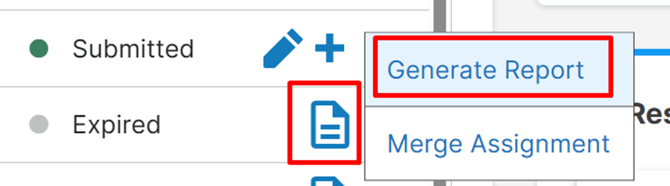
Go to the examinee’s test set and click the three dots next to the submitted test to generate a report. A clipboard icon will appear for expired or closed test assignments that you can click to also generate a report.
3. Select the Item Level Detail Report
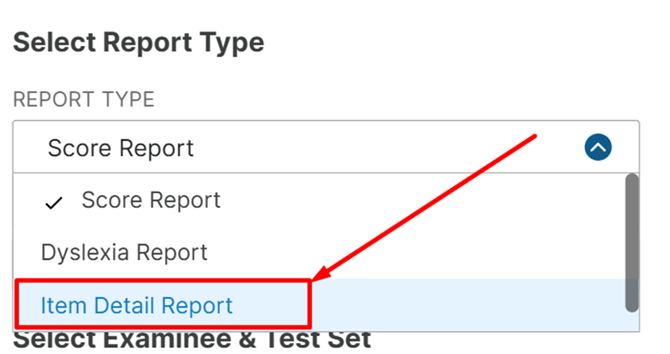
On the report creation screen, locate the Report Type filter box.
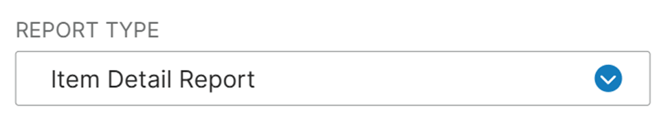
Click the box and select Item Level Detail Report from the list.
4. Complete Required Fields
Fill out any required fields the system asks for, such as examinee selection or test set details
5. Generate the Report
Once all required fields are completed, click Generate Report.
Your Item Level Detail Report will then be displayed.

Important Note
A test must be in Submitted status to generate any report.
You cannot generate a report for a test assignment that is In Progress.
What Is the WJ V Item Detail Report Used For?
The WJ V Item Detail Report provides a detailed breakdown of an examinee's performance on individual tests.
This report can help examiners:
- View administration dates: Find the Date(s) of Testing field for each test, particularly helpful when assessments are administered across multiple days.
- Review individual item scores: See which items were scored correctly, incorrectly, or not administered.
- Review examinee responses: View recorded responses and item descriptions when available.
- Identify starting points and stopping rules: Review the starting point and stopping rule used for each test.
- Review response indicators and flags : Identify available flags and response indicators, such as Don't Know, No Response, and Response Booklet.
- Analyze timed test performance: For supported Tap Fluency tests, review correct, incorrect, and unanswered items, along with time spent on each page.
The information displayed may vary depending on the test administered.