
How to Fix Issues Typing an Examinee’s Full Name in Reports
This article applies to WJ IV. If the system doesn’t recognize an examinee’s full name when creating a report, follow these troubleshooting steps to resolve the issue.
-
1. Do not type the examinee’s full name into the “Create Report Name” field — entering the full name causes an error. (Image: the field showing the error after a full name is typed.) 2. Instead, type only the examinee’s first or last name. (Image: the same field accepting a partial name.) 3. Riverside Score displays a dropdown list of matching names — click the correct examinee’s name. (Image: the dropdown list of matches.) 4. The name populates the field and the Test Record appears. (Image: the completed field with the Test Record loaded below it.)
-
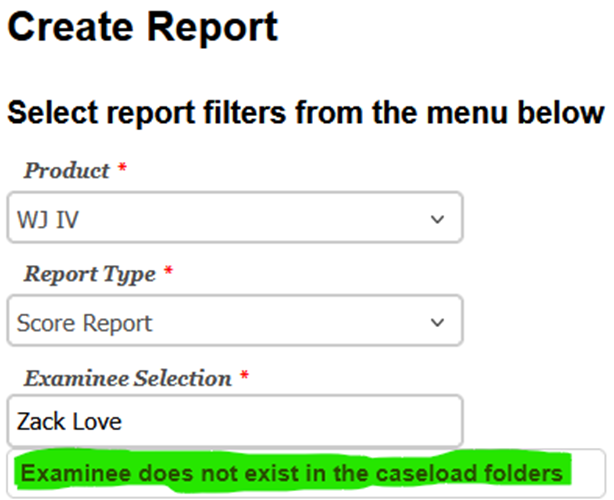
Do not type the examinee’s full name into the “Create Report Name” field.
-
Entering the full name will result in an error.
-
-
Type Only the First or Last Name
-
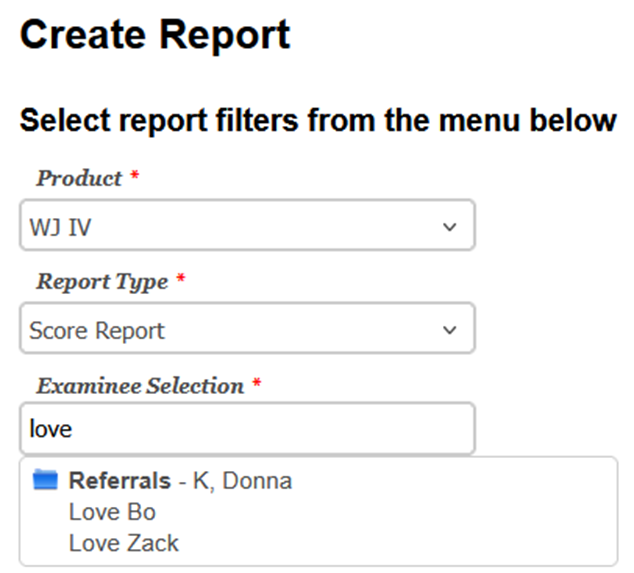
Enter just the first name or last name of the examinee.
-
Riverside Score will automatically fill in the rest of the name.
-
-
Select the Correct Name
-
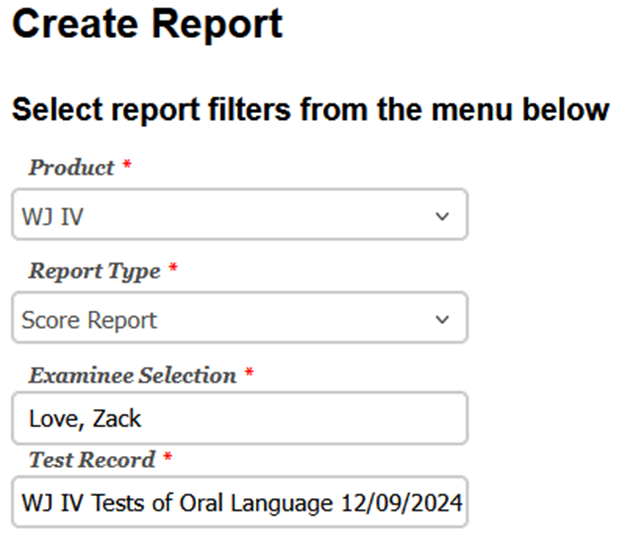
Click on the examinee’s name from the dropdown list that appears.
-
The name will automatically populate in the field, and the Test Record will appear as well.
-
Tips for Avoiding Errors
-
Use partial names instead of full names to prevent search errors.
-
Ensure the name is spelled correctly for the system to recognize it.
-
If the examinee’s name still doesn’t appear, verify their information in the system database.
