This article applies to WJ V. 1. Sign In to Riverside Score
Start by signing into your Riverside Score account.
2. Locate Your Test Assignment
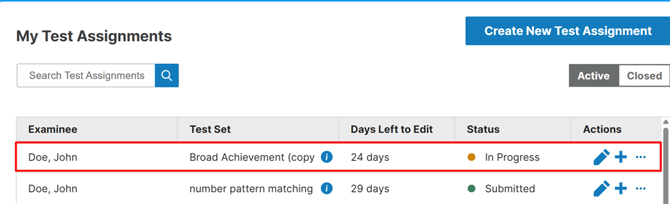
On the Dashboard, you will see a list of your test assignments.
Find the test you want to review and click on it.
3. Open the Review Mode Option
After clicking on the test, a pop-up window will appear showing how to connect to the test.
In the top-right corner of this pop-up, you will see a Review Mode button.
Click this button to enter Review Mode.
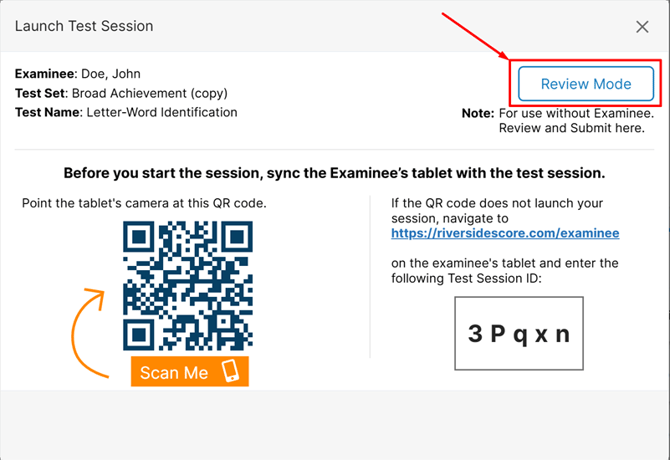
⚠️Test Session ID code is unique
4. Make Edits in Review Mode
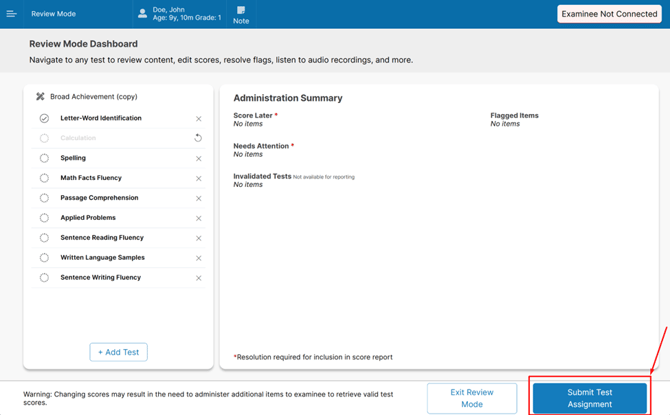
Once you are in Review Mode, you can:
- Deselect or select item responses
- Skip or unskip tests you want included or excluded from a report
- Add new tests to the test assignment
- Resolve flags
- Listen to audio recordings
Review Mode allows examiners to review and correct supported responses and scoring information. Available editing options may vary by test, and some scoring or timing information may not be editable after administration.
5. What Happens If a Correction Reopens a Test?
When an examiner changes an answer in WJ V Review Mode, the correction may affect the test's administration requirements.
In some cases, a previously completed test may reopen because additional items need to be administered.
If a correction reopens a test:
- Click Go Back to Review Mode.
- Exit Review Mode and return to the Dashboard.
- Select the test assignment and relaunch the assessment by scanning the QR code with the examinee's iPad.
- Continue administering the assessment with the examinee and complete any additional items required.
- Once testing is complete, submit the assignment as normal.
Important: Changing an answer does not always reopen a test. However, if the test reopens, the examiner must launch it again and complete the required administration before submitting the assignment.
6. Exit Review Mode or Submit
When finished, you have two options:
- Click Exit Review Mode at the bottom of the screen to leave Review Mode without submitting.
or - Click Submit Assignment in the bottom-right corner to submit the test directly from Review Mode.