
WJ V: How to Verify Staff Access
- Log in to Riverside Score and select WJ V.
- Click the Staff tab.
- Search for the staff member using their first name, last name, or email address.
- Review the search results to locate the staff member.
- Check the Status column to confirm whether the staff member is Active or Deactivated.
Note: Both active and deactivated staff members appear in the search results, so a separate inactive staff search is not necessary.
WJ IV / Batería IV / ECAD: How to Verify Examiner Access
- Log in to Riverside Score and select WJ IV.
- Hover over Administration, then hover over Examiners.
- Click Search/Edit.
- Enter the examiner's first name, last name, or email address.
- Click Search to locate the examiner.
If the examiner does not appear:
- Check the Inactive Examiners box.
- Click Search again to check for an inactive account.
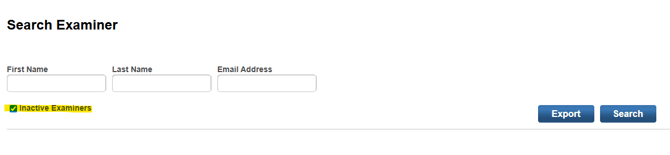
Tip: If you receive an "Email already in use" error when adding an examiner, search for their email address under inactive examiners before attempting to create another account.
BDI-3: How to Verify Staff Access
- Log in to Riverside Score and select BDI-3.
- Navigate to Staff Administration > Search/Edit Staff.
- Enter the staff member's first name, last name, or email address.
- Click Search to locate the staff member.
If the staff member does not appear:
- Check the Search inactive staff box.
- Click Search again to check for an inactive account.
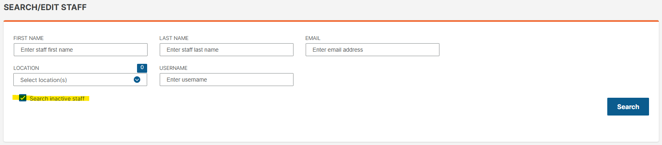
Tip: If you receive the error "Email already in use, please use a different email address" when adding a staff member, search for their email address under inactive staff before attempting to create another account.
WMLS III: How to Verify Examiner Access
- Log in to Riverside Score and select WMLS III.
- Hover over Administration, then hover over Examiners.
- Click Search/Edit.
- Enter the examiner's first name, last name, or email address.
- Click Search to locate the examiner.
If the examiner does not appear:
- Check the Inactive Examiners box.
- Click Search again to check for an inactive account.
Need to Reactivate a Staff Member?
If you locate an inactive or deactivated staff member, follow the appropriate instructions below.
- BDI-3: How to Activate Inactive BDI-3 Users
- WJ IV / Batería IV, WMLS III, and WJ V: Click the pencil icon under Actions, locate Status, change it to Active, and click Save.
If the staff member is active but unable to log in, have them request a password reset link first. If they continue experiencing issues after resetting their password, please contact Riverside Support for further assistance.