
To create a Battelle Developmental Inventory, 3rd Edition (BDI-3) Score Report or Family Report:
1. On the menu bar, click Reports and select Report Center. The Report Center opens on the Create a Report tab.
2. Report Type – Select a report type of Score Report or Family Report.
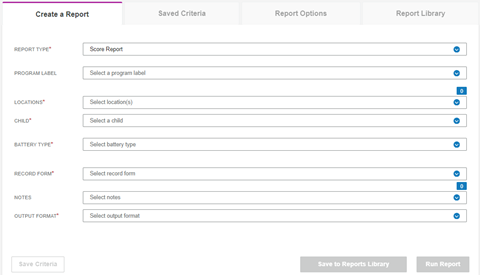
3. Complete the fields.
- Program Label (optional) – You can select a program label. Labels are created for certain programs.
- Locations – Select one or more locations. You will have access to the child records in the selected locations.
- Child – Select a child from the list.
- Battery Type – The battery types that have been committed for the selected child are listed. Select a battery type.
- Record Form – The record forms that have been committed for this child appear. Select a record form.
- Scores – Select the scores to appear on the report from the drop-down list.
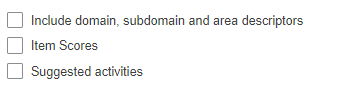
- Check boxes to include:
-
Domain, subdomain, and area descriptors
- Item Scores
- Suggested Activites
- Notes (optional) – Select the notes you want to see on the report.
- Output Format – Select Word or PDF.
4. Click Run Report. The report output appears.
Note: You can also click Save Criteria or Save to Reports Library.
*If you select Battelle Developmental Inventory, 3rd Edition (BDI-3) Developmental Record Form as the Battery type, the Scores field appears.