🧩 Overview
Use the Add Child feature in BDI-2 Normative Update to register a new child and assign them to a class or team. This form captures essential demographic and educational data required for assessment setup.
🔧 Steps
-
Open the Add Child Form
– From the Child Administration menu, click Add Child.
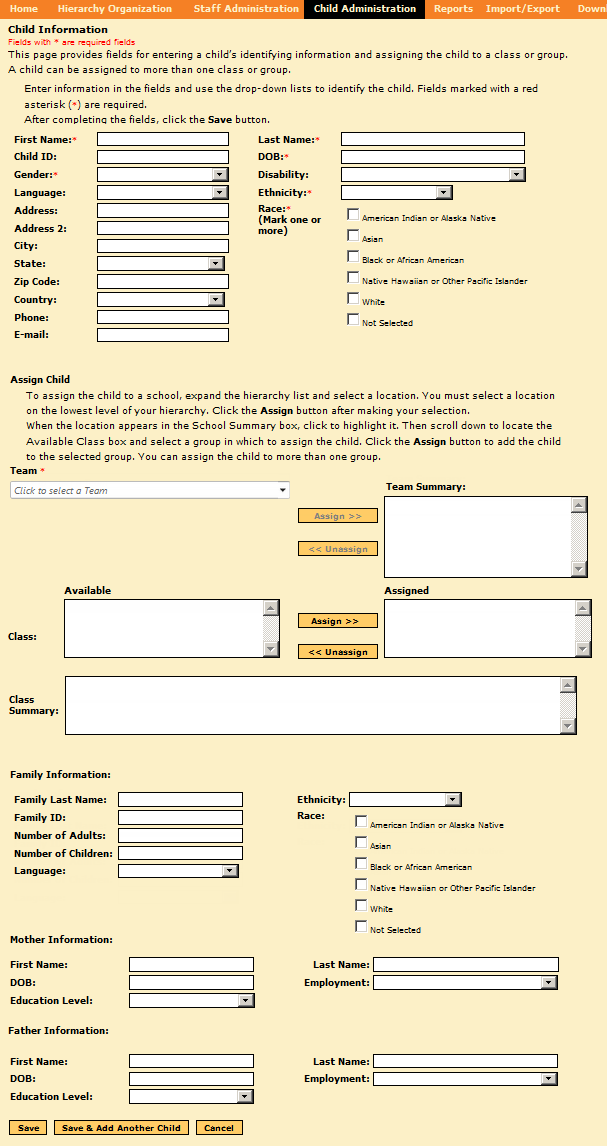
– The Add/Edit Child page opens. Required fields are marked with a red asterisk (*). -
Enter Child Information
– Fill out the required details such as First Name, Last Name, DOB, Gender, and more.
– 📸 See highlighted "Child Information" section in screenshot below. -
Assign Child to a Team and Class
a. Choose a Team from the drop-down list.
b. Click Assign >> to add the team to the Team Summary.
c. In the Available classes list, select a class and click Assign >> to move it to the Assigned box.
d. Review selections in the Class Summary box.
– 📸 Refer to "Assign Child" section in screenshot for interface layout. -
(Optional) Add Family Information
– Complete fields like Family Name, Number of Children, and Languages Spoken.
– 📸 Visible in the "Family Information" section at the bottom of the screenshot. -
Save the Record
– Click Save to complete the process.
– Click Save & Add Another Child to enter a new record immediately.
– Click Cancel to exit without saving.
📝 Additional Notes
-
Any data entered in user-defined fields won’t appear in reports unless also added as notes.
-
You can edit or delete records later if needed using the corresponding features in the Child Administration menu.