
To move examinees:
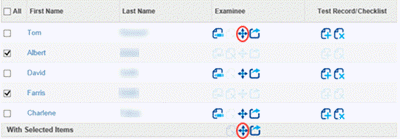
To begin moving one or more examinees from one caseload folder to another, go to your list of examinees. You can move examinees in several ways:
- Click the move icon next to a single examinee to move only that examinee.
- Select multiple examinees using the checkboxes, then click the move icon in the bottom action bar to move all selected examinees at once.
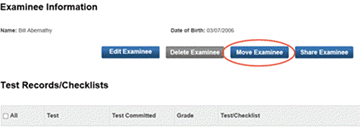
- From the Examinee Information page, click the Move Examinee button. If the button appears gray, the examinee cannot currently be moved.
- After clicking the move option, the Select Caseload Folder page opens.
- Select the appropriate year from the Year dropdown menu. Once the year is selected, the list of available caseload folders for that year will appear.
- Select the caseload folder you want the examinee(s) moved to.
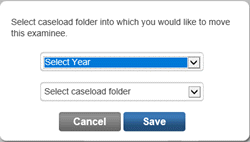
- Click Save to complete the move.
- A confirmation message will appear stating: “The examinee has been moved.”