
1. Sign In to Riverside Score
Start by signing into your Riverside Score account using your Account holder credentials.
2. Click the Staff tab
From the WJ V dashboard, click on the Staff tab.

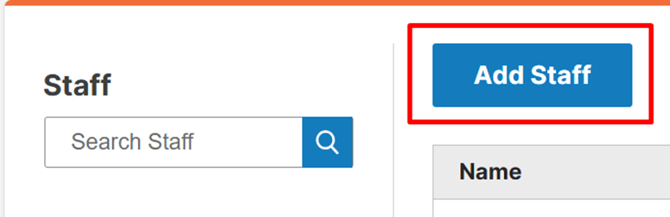
4. Search for Staff
Enter the staff member’s First Name and Last Name, making sure they match exactly as they appear in the previous system (WJ IV or BDI-3).
5. Fill in information
Enter the same email address used on their existing account.
- Matching first name, last name, and email is what allows the systems to link.
6. Pop-up message
After entering the email, you will see a pop-up message:
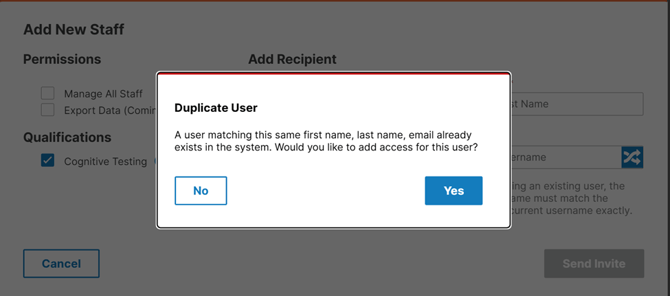
7. Click Yes.
- The Username field will auto-fill with the existing username from their other system.
- This confirms that the user will now have one username across all platforms.
8. Finish adding details
Complete any remaining fields and select Send Invite to finish adding them to WJ V.
⚠️ If the Email Is Different or Outdated
If you want to link accounts but the staff member’s current email does not match the one in their older account:
- Go to the platform where the staff member was originally added (WJ IV or BDI-3).
- Open the staff member’s profile and update their Email to the correct one you want to use moving forward.
- Save the update on that platform.
- Return to WJ V → Staff → Add Staff.
- Enter the staff member’s First Name, Last Name, and the updated email.
- The same Duplicate user pop-up will appear.
- Click Yes to link the accounts.
- The username will again auto-fill with their existing username, ensuring they now have one unified login.