
1. Sign In to Riverside Score
Begin by signing into your Riverside Score account.
2. Go to the Dashboard
After signing in, you will be on the Dashboard where all active test assignments are shown.
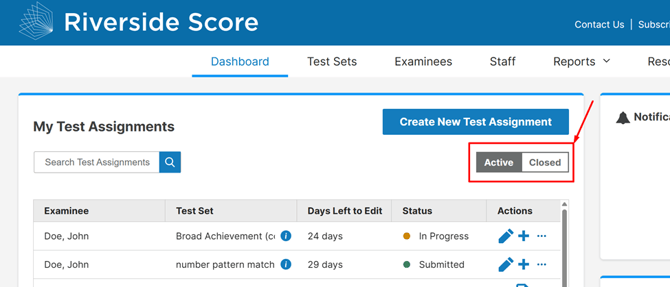
3. Switch to Closed Test Assignments
To view closed assignments:
- Look at the top-right area of the Dashboard.
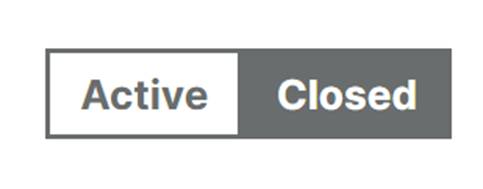
- Under the "Create New Test Assignment" button, locate the status slider.
- Click on "Closed."
The list will refresh and display all test assignments that have been closed in your account.
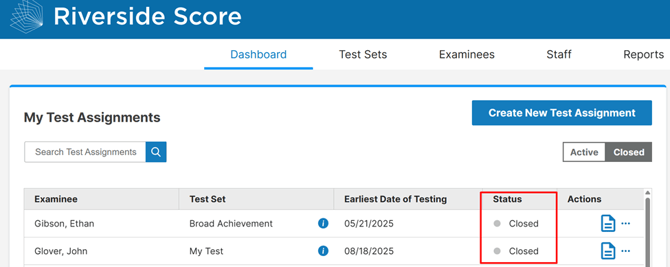
What It Means When a Test Assignment Is “Closed”
A test assignment becomes closed once administration is complete and the system has marked all required tests as finished.
What You Can Still Do:
- Generate Reports. All appropriate reports can still be generated.
Valid scores will compute normally, even after the assignment has closed.
What You Cannot Do
- Re-open the test for live administration
(No active testing screens will be available for the examinee once the assignment is closed.) - Change administration order or return to live item administration
Why Test Assignments Close
Assignments close automatically to:
- Maintain test security
- Finalize scoring rules such as basal and ceiling
- Prevent accidental changes to administered content
- Ensure accurate, norm-based scoring
Closing is a standard part of the WJ V workflow. Once all items are scored and the system determines the test is complete, it finalizes the assignment.