1. Sign In to Riverside Score
Begin by signing into your Riverside Score account.
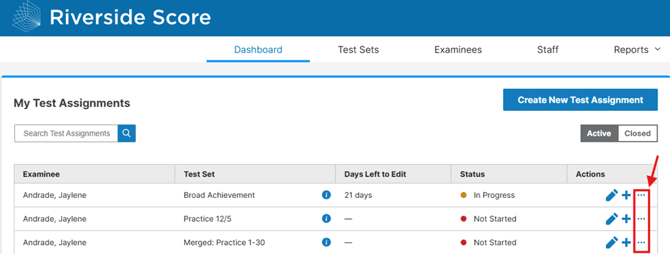
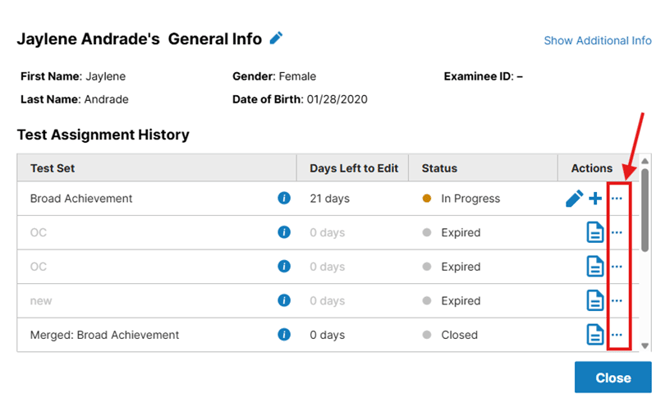
On the WJ V Dashboard, you will be able to see a list of your current test assignments. Click on the three dots on the “Actions” Tab for the examinee you would like to share (this can be done from the examinee profile as well).
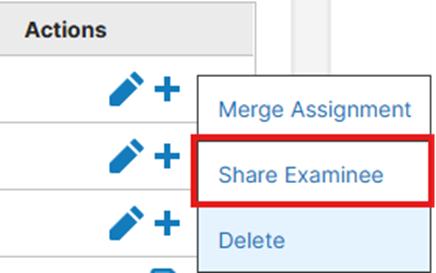
Click on “Share Examinee” to start selecting the Examiner(s) you would like to share with.
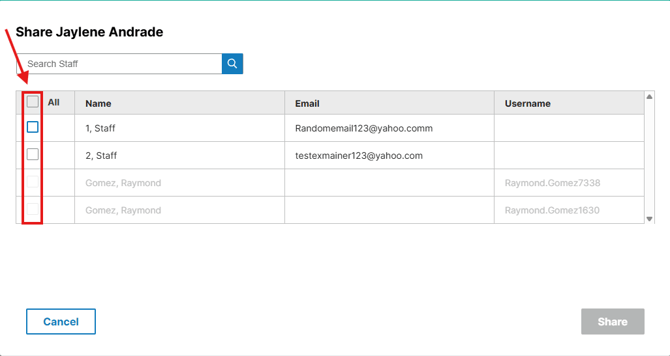
A list will appear showing all eligible examiners that the examinee can be shared with.
Select the examiner(s) by checking the box to the left of their name, then click share to complete.
4. Merge Examinees (Optional)
If you have duplicate examinees after the sharing, you can merge the profiles by clicking the three dots and using the "merge examinee" action.
⚠️Important Notes
- You can only share if you have the sharing permission.
- Examiners can still receive shared examinees without having the sharing permission.
- Sharing is a permission that must be turned on by your account holder.
- You can only share examinees that you have access to.
- When sharing an examinee, it’ll share all assignments within the profile.
- There is no extra action needed from the recipient. Upon login, they will see the shared examinee data on their dashboard or under the “examinees tab” in the examinee profile.
- If you are unable to share to a specific examiner, this means they already have access to the examinee.
- There is no way to undo a share once the action has been completed.
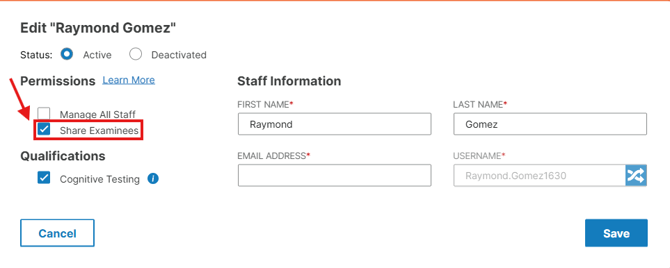
- Account Holders: To enable sharing permissions - Staff Tab > Actions (blue pencil) > Check Share Examinees box > Save