
1. Sign In to Riverside Score
Start by signing into your Riverside Score account.
2. Open the Staff Tab
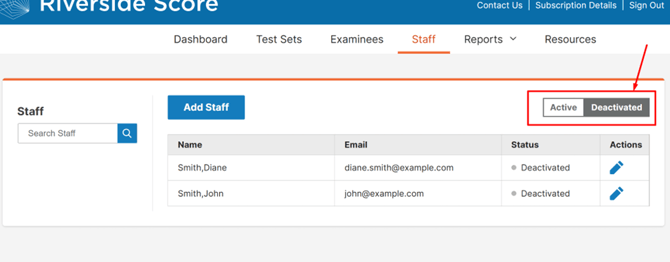
Click on the Staff tab at the top of the screen.

3. View Deactivated Staff
On the right side of the Staff page, you will see a filter labeled Active / Deactivated.
Click Deactivated to view all staff members who are currently deactivated.
4. Edit the Staff Member
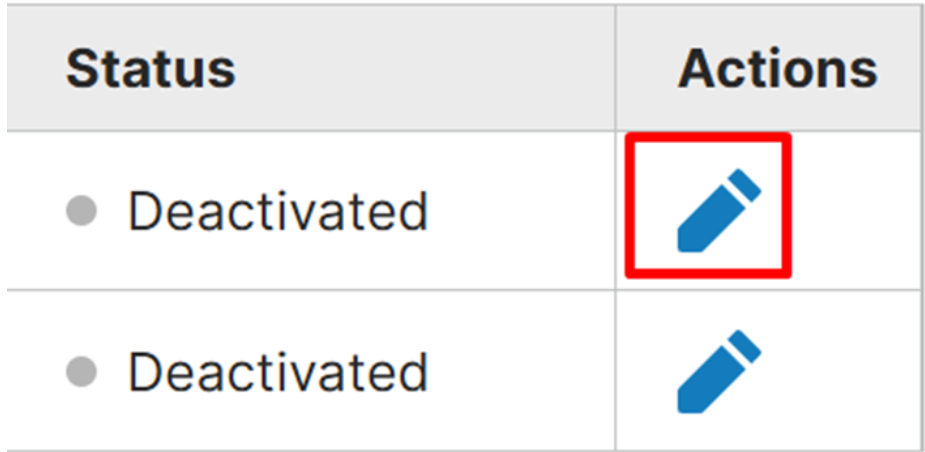
Locate the staff member you want to reactivate and click the pencil icon in the Actions column.
This opens their staff profile.
5. Change Status to Active
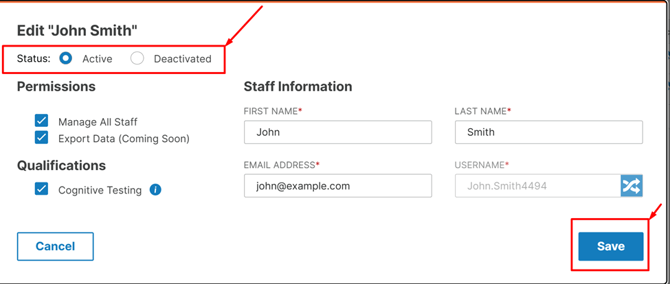
Inside the staff profile, change their status to Active.
6. Save Your Changes
Click the Save button in the bottom-right corner to confirm.
The staff member will now be reactivated and able to log into Riverside Score to access the WJ V.
⚠️Important Notes
The Staff tab only appears for users who have permission to manage staff.
- Account Holders and Secondary Account Holders automatically have this permission.
- Regular Staff Members will only see the Staff tab if their account holder or secondary account holder has enabled the Manage Staff permission for them.