
Begin by signing into your Riverside Score account.
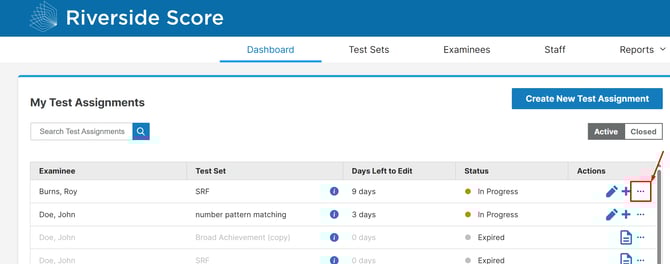
On the WJ V Dashboard, you will be able to see a list of your current test assignments. Click on the three dots on the “Actions” Tab for the test you would like to merge.
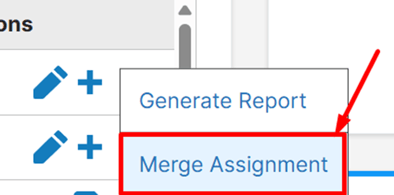
2. Select “Merge Assignment”
Click on “Merge Assignment” to start selecting the tests you want to merge
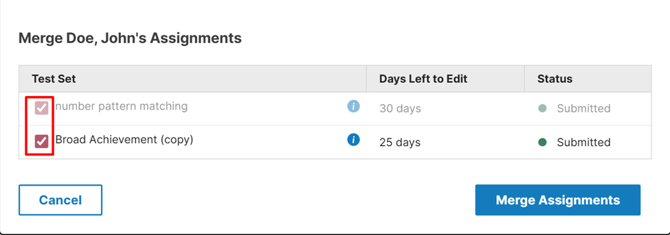
3. Choose the Test Assignments to Merge
A list will appear showing all eligible test assignments available for merging.
Select the assignment(s) you want to merge from, then click Merge Assignments to complete the merge.
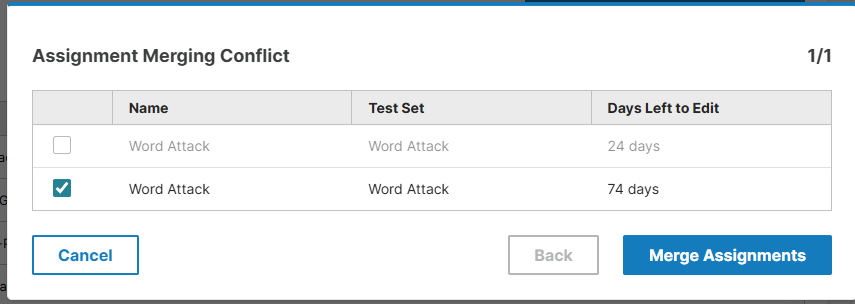
If you get a message that says conflict because you have 2 of the same subtest in both tests. (screenshot below) Click proceed.
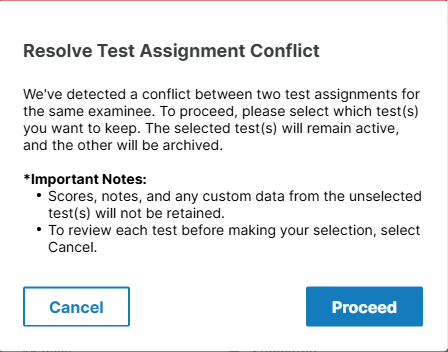
It will default to the old test, so please make sure after you proceed to unselect the old test and select the new test so that it merges correctly. Then click merge assignment. Then re-generate your report.
⚠️Important Notes
- You can only merge test assignments that you personally administered on your account.
- Test assignments must belong to the same examinee for merging to be possible.
- Only valid, completed tests can be merged. A test becomes a closed test once it is outside of the 90-day editing window.
- The 90-day period begins on the date and time the very first test in that assignment was started, not when the most recent test was administered.
- After 90 days from the start of the first administration, scores can no longer be edited. Test assignments that are closed may still be merged as long as they are within the 90-day window.