
1. Sign In to Riverside Score
Start by signing into your Riverside Score account.
2. Choose How You Want to Start the Report
You have two ways to begin:
Option A – Reports Tab
Click on the Reports tab at the top of the screen to create a new report.

Option B – From a Test Set
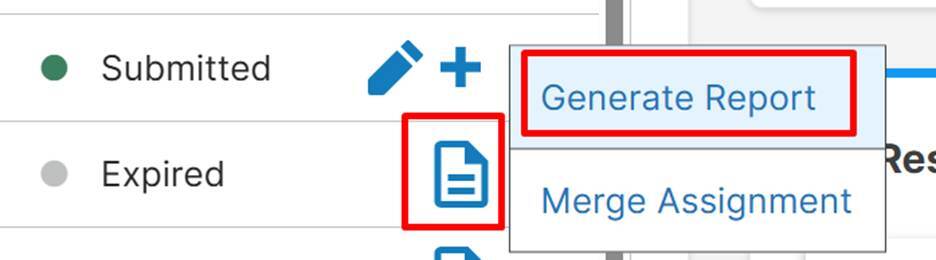
Go to the examinee’s test set and click the three dots next to the submitted test to generate a report. A clipboard icon will appear for expired or closed test assignments that you can click to also generate a report.
3. Select the Score Report
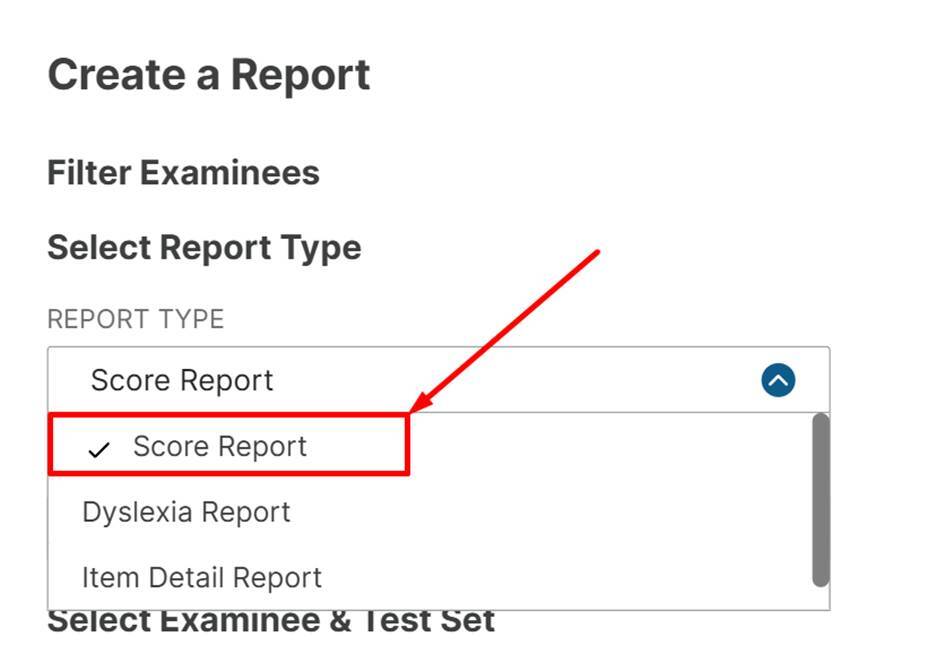
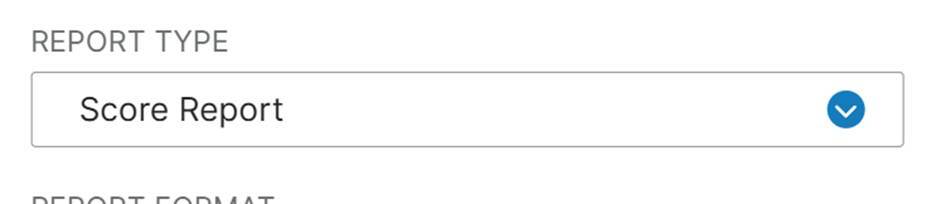
On the report creation screen, you will see a Report Type filter box.
Click the box and select Score Report from the list. The Score Report type will be selected by default
4. Complete Required Fields
Fill out all required fields that the system asks for, such as examinee selection or test set details.
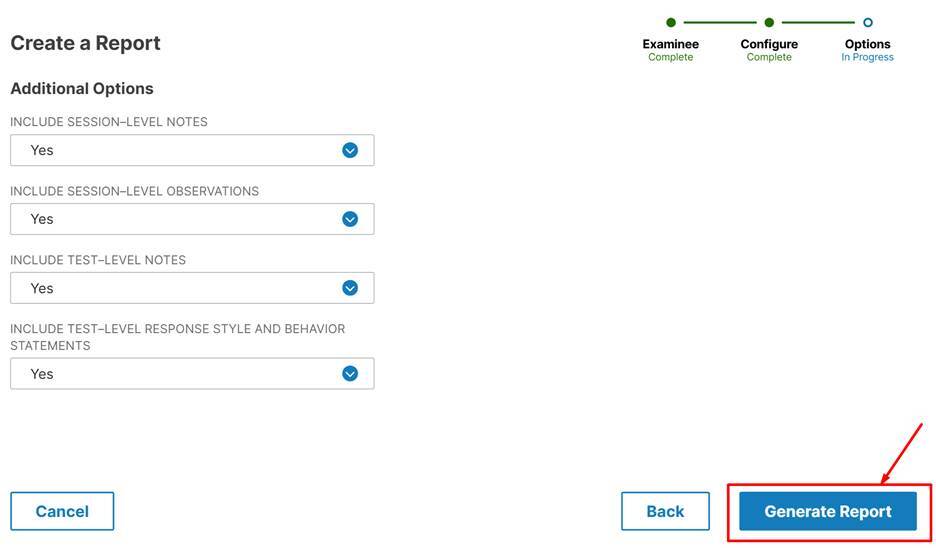
5. Generate the Report
After completing the required fields, click Generate Report.
Your Score Report will then appear for viewing.
Important Note
A test must be in Submitted status to generate a report.
Reports cannot be created for test assignments that are In Progress.