
Begin by signing into your Riverside Score account.
2. Choose How You Want to Start the ReportYou have two options:
Option A – Reports Tab
Click on the Reports tab at the top of the page to begin creating a report.

Option B – From a Test Set
Go to the examinee’s test set and click the three dots next to the submitted test to generate a report. A clipboard icon will appear for expired or closed test assignments that you can click to also generate a report.
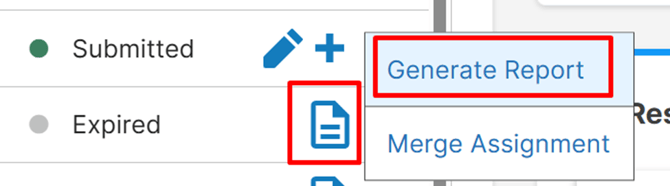
Whether starting from the Reports tab or via the clipboard icon, you will see a Report Type filter box.
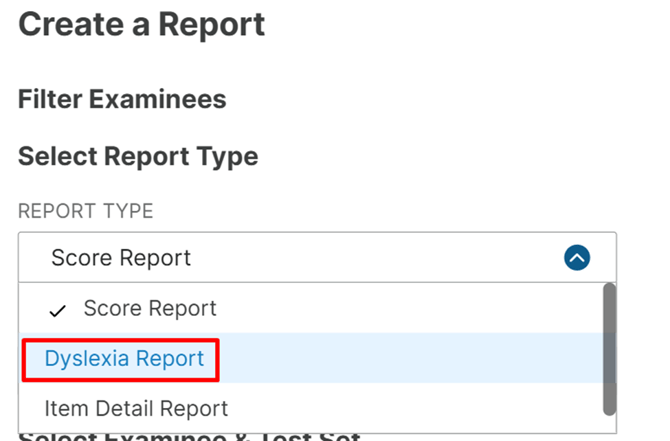
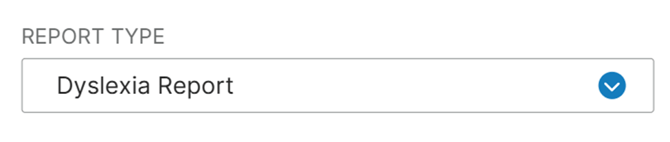
Click the box and select Dyslexia Report from the list.
Fill out any additional required fields that appear. These may include examinee selection, date range, or test set details.
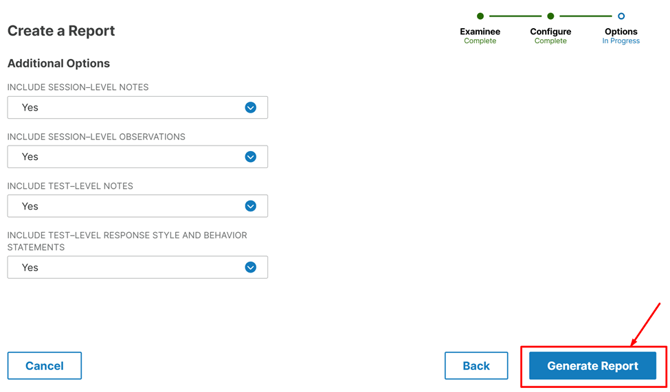
5. Generate the ReportOnce all required fields are selected, click Generate Report.
You will then be able to view the completed Dyslexia Report.
Important Note
A test must be in Submitted status to generate a report.
Reports cannot be created for test assignments that are In Progress.