
1. Sign In to Riverside Score
Start by signing into your Riverside Score account.
2. Locate Your Test Assignment
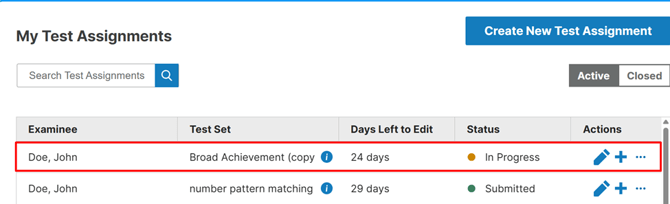
On the Dashboard, you will see a list of your test assignments.
Find the test you want to review and click on it.
3. Open the Review Mode Option
After clicking on the test, a pop-up window will appear showing how to connect to the test.
In the top-right corner of this pop-up, you will see a Review Mode button.
Click this button to enter Review Mode.
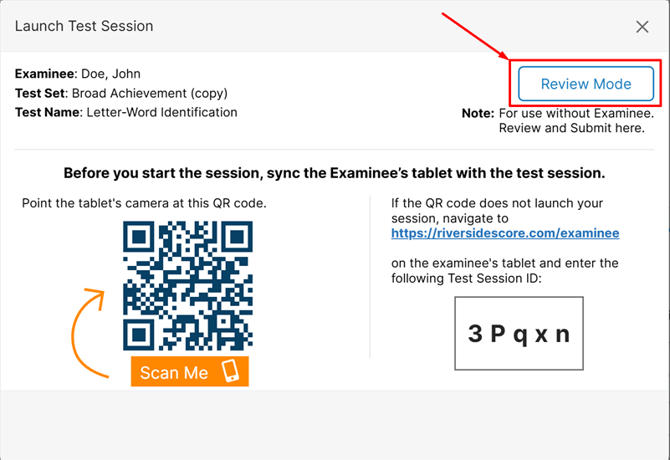
⚠️Test Session ID code is unique
4. Make Edits in Review Mode
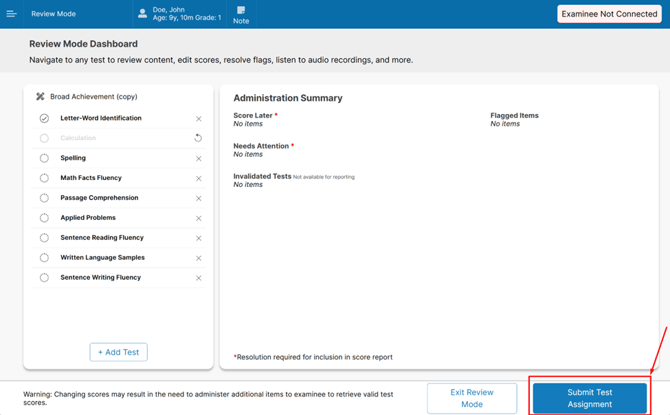
Once you are in Review Mode, you can:
- Deselect or select item responses
- Skip or unskip tests you want included or excluded from a report
- Add new tests to the test assignment
- Resolve flags
- Listen to audio recordings
Review Mode provides access to all entered scoring, allowing full correction and adjustment as needed.
5. Exit Review Mode or Submit
When finished, you have two options:
- Click Exit Review Mode at the bottom of the screen to leave Review Mode without submitting.
or - Click Submit Assignment in the bottom-right corner to submit the test directly from Review Mode.
⚠️ Important Note
Changing scores may require administering additional items to the examinee in order to obtain valid test scores.