
1. Sign In to Riverside Score
Begin by signing into your Riverside Score account.
2. Open the Staff Tab
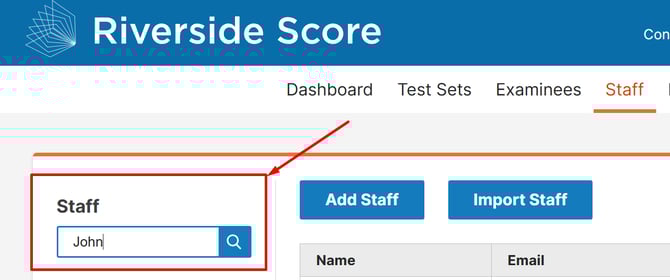
Click on the Staff tab at the top of the screen to view and manage staff.

3. Search for the Staff Member
Use the search bar to look up the staff member whose information you want to edit.
4. Open the Staff Member Profile
Once the staff member appears in the results, click the pencil icon in the Actions column to open their profile for editing.
5. Edit Staff Information
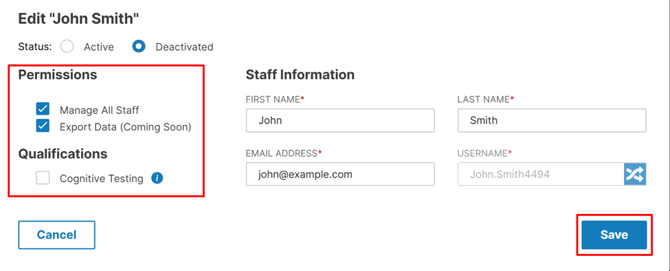
You can update any of the staff members' details or permissions, except the username field.

Username changes must be made by the staff member themselves.
If a username needs to be updated:
- The staff member should log into their own account.
- Click their name in the top-right corner to open their profile settings.
- Edit the username inside the Username field.
- Click Save to update.
6. Adjust Permissions
While editing a staff profile, you can change their permissions, including:
- Manage All Staff – allows the staff member to access the Staff tab and manage staff.
- Cognitive Testing Access – allows the staff member to administer cognitive tests.
7. Save Changes
Once all updates are made, click the Save button in the bottom-right corner to apply changes.
⚠️ Important Notes
The Staff tab only appears for users who have permission to manage staff.
- Account Holders and Secondary Account Holders automatically have this permission.
- Regular Staff Members will only see the Staff tab if their account holder or secondary account holder has enabled the Manage Staff permission for them.