
1. Sign In to Riverside Score
Start by signing in to your Riverside Score account.
2. Open the Examinee Tab
Once signed in, click on the Examinee tab to begin searching for your examinees.

3. Search for the Examinee
Use the search bar to find the examinee whose information you want to edit.
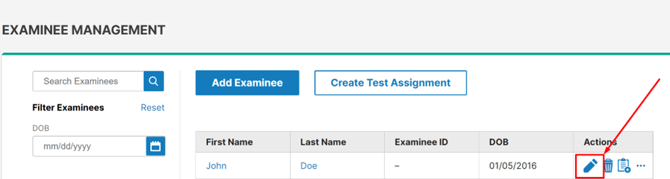
4. Click the Edit (Pencil) Icon
When the examinee appears in the search results, click the pencil icon next to their name to open the editing screen.
5. Edit Examinee Details
You can update the following fields:
- First Name
- Last Name
- Gender
- Date of Birth (if entered incorrectly during creation)
- Any additional optional information not previously added
6. Save Your Changes
When you are finished, click the Save button in the bottom-right corner to keep all updates.