
1. Sign In to Riverside Score
Begin by signing into your Riverside Score account.
2. Go to the Reports Tab
Click on the Reports tab at the top of the screen.
This is the same starting point used for generating any report.

3. Start Creating a Report
Once you are on the report creation page, proceed to the next step/page of the report setup.
4. Configure Your Score Template
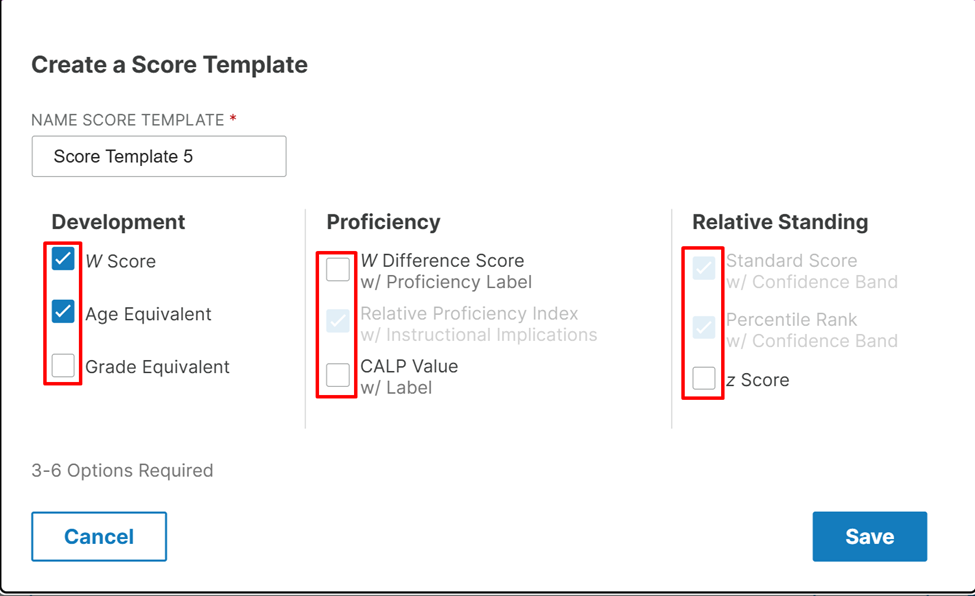
On the second page of the report setup, you will see an option to Create a Score Template.
Here, you can choose which score types you want included in your report.
You may select multiple boxes, depending on which score types you want to generate.
As long as the test set contains enough data to produce those scores, the system will include them.
5. Save Your Score Template
After selecting the score types you want, click the Save button in the bottom-right corner.
You will then be prompted to name your template.
You can name it anything you like.
6. Reuse Your Template Anytime
Once saved, your template can be selected whenever you run a report again.
You may reuse it as many times as needed to include your preferred score configurations.