1) On the WJ V, please click on the “Staff” tab to begin adding staff. Please note that the staff tab will only appear with accounts that have permission to manage staff.
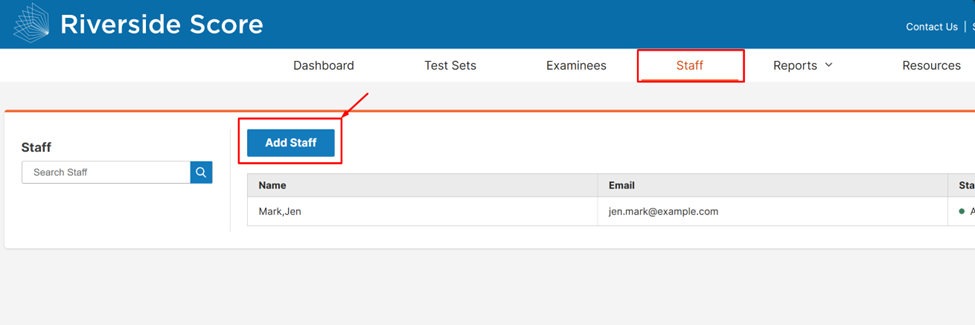
From here, click the “Add staff” button.
2. You will then be able to add the staff’s information to create a new account for them. Please fill in all the required fields (first name, last name, email address, username)
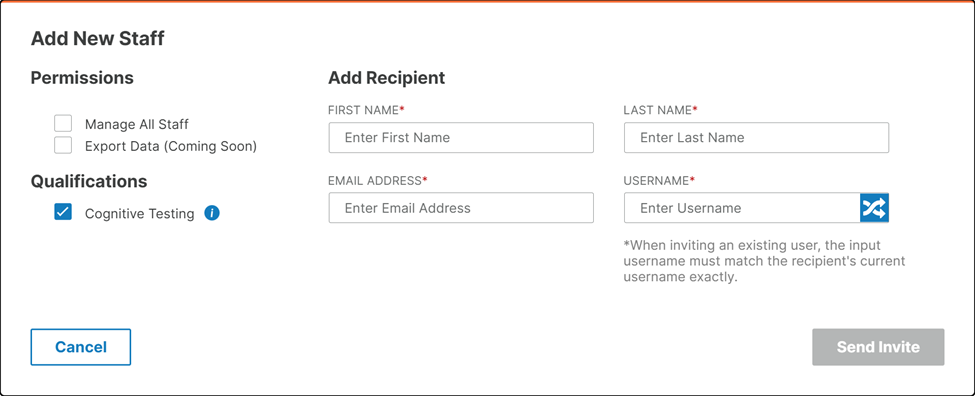
3) Once you are done filling out the required fields, hit the “Send Invite” button to send the invitation email to the new staff member added.

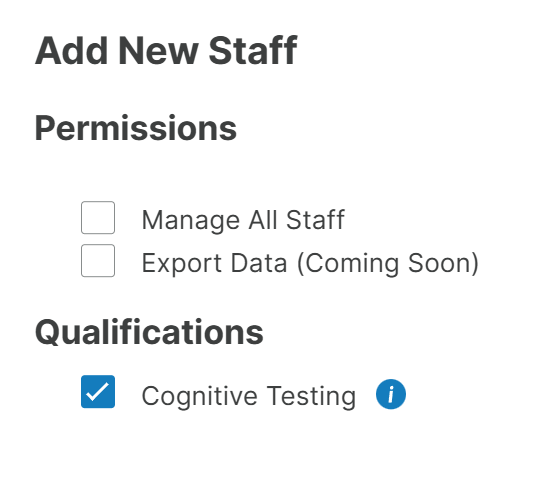
4) When you are adding your staff, please note that you can set permissions for each staff:
-
“Manage All Staff” permission allows the staff member to have the “Staff” tab that they can use to manage staff. The
-
“Export Data” permission will be a future feature that will allow the staff member to generate a data export. The Qualifications selection will allow the staff member to access Cognitive tests.