
Click your name in the top-right corner of the screen. This will take you to your profile page.
2. Go to the Settings Tab
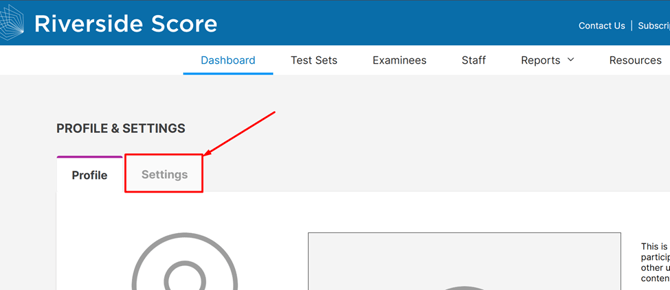
Once your profile is open, click the Settings tab located at the top left.
3. Add a Secondary Account Holder
Inside the Settings tab, you will see a blue button labeled “Add Secondary Account Holder.”
Click this button to begin entering the new user’s information.
 4.
4.
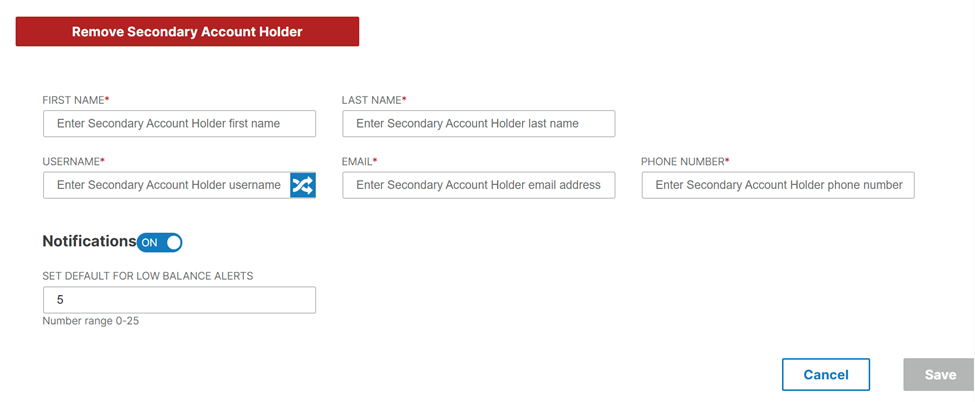
4. Enter Required Details
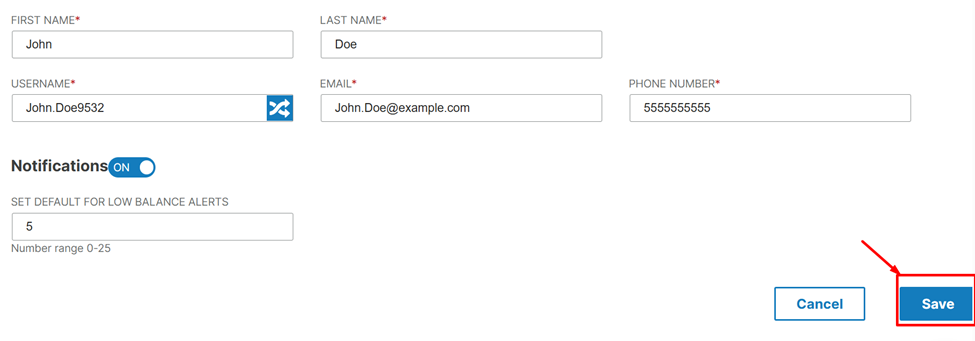
Fill in all required fields:
- First Name
- Last Name
- Username
- Phone Number
After all fields are complete, click the Save button to finalize.
 5. Email Notification
The secondary account holder will receive an email letting them know an account has been created for them. The email will also include instructions on how to sign in.
⚠️ Important Note
By adding a Secondary Account Holder, you are giving that person the right to add/edit/review all of the following for your organization:
-Administrators/Examiners
-Examinees/Caseload Folders
-Test Records/Reporting Data
-Once you fill out the required fields and select 'Save', the Secondary Account Holder will be sent a welcome email and will have Account Holder level access to your organization.