To open the Report Center:
Click Reports on the menu and select Report Center.
Score and Family Report
There are two reports – the Family Report and the Score Report – and a Data Export option. The fields for the reports vary depending on the battery type you select. The fields in the following instructions are for the BDI-3 Developmental Record Form.
To create the Score or Family report:
1. On the Create a Report tab, in the Report Type field, select Score Report or Family
Report.
Note: The fields are the same for the Score and Family reports. The outputs vary slightly.
2. Complete the fields.
Note: These fields appear if you select the BDI-3 Developmental Record Form as the Battery Type.
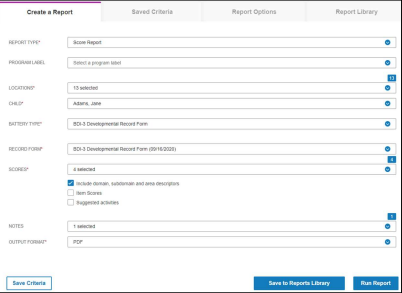
- Report Type – Select Score Report or Family Report.
- Program Label (optional) – You can select a program label. Labels are created to track certain programs.
- Locations – Select one or more locations. You will have access to the child records in the selected locations.
- Child – The children for the selected locations who have committed record forms are listed. Select a child from the list.
- Battery Type – The battery types that have been committed for the selected child are listed. Select a battery type.
- Record Form – Committed record forms are listed. Select a record form.
- Scores – This field appears only for the BDI-3 Developmental Record Form. Select the scores you want to view from the drop-down list.
- These three check boxes appear below Scores. Select the ones you want to include.
- Include domain, subdomain and area descriptors
- Item Scores
- Suggested activities
Notes (optional) – Select the notes you want to see. Item Score Notes only appears if you selected Item Scores in the previous field.
- Output Format – Select Word or PDF as the output format.
3. Click Run Report. The report opens in the output format (Word or PDF) selected.
Export Data
Administrators can export data to an Excel spreadsheet, selecting one or more children whose data they want to export.
To export data:
1. On the Create a Report tab, select Data Export in the Report Type field.
2. Complete the fields.
- Data Export Name – Type a descriptive name for the export.
- Date Range – Select the From and To dates for the data to be exported.
- Program Label (optional) – Select a program label.
- Locations – Select one or more locations.
- Children – The children who have data available for the selected locations will be listed. Select the children.
- Battery Type - Select a battery type.
3. Click Save to Report Library. The Report Library opens. The Excel file can be downloaded when the Status column shows Complete.
Saved Criteria
To save report criteria:
1. On the Create a Report tab, complete the fields.
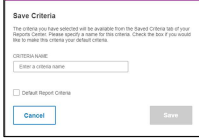
2. Click Save Criteria. The Save Criteria box opens.
3.Type a name for the criteria in the Criteria Name field.
4. If you want this criteria to appear when you open the Create Report tab, click the Default Report Criteria checkbox.
5. Click Save. The report is saved in the Saved Criteria
tab.
Using Saved Criteria
Click the Saved Criteria tab and then:
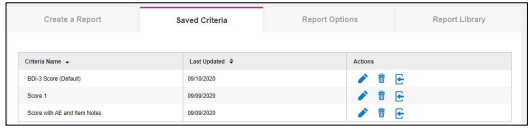
- Click the Edit icon to edit the name or change the default status. Note that the default is indicated in parentheses in the Criteria Name column.
-Click the Delete icon to delete the criteria. When the Delete Criteria box opens, click Yes.
- Click the Load icon to open the criteria in the Create a Report tab.
Report Options
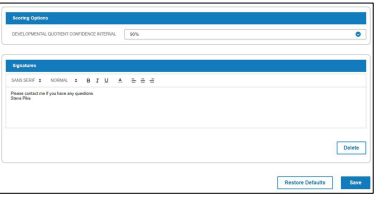
Click the Report Options tab.
- Under Scoring Options, select 90% or 95% as the Developmental Quotient Confidence Interval.
- Under Signatures, type a signature to appear at the end of reports and click Save.
- Click Delete to delete the signature. You can enter another.
- Click Restore Default to restore the default Developmental Quotient Confidence Interval.
Report Library
To save a report to the Report Library:
1. In the Create a Report tab, complete the report fields.
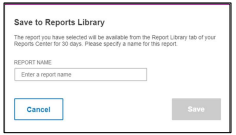
2. Click Save to Reports Library. The Save to Reports Library box opens.
3.Type a name in the Report Name field.
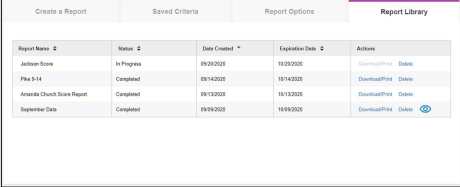
4. Click Save. The Report Library opens. In the Status column, In Progress appears until the report has finished loading. The status is then Completed.
Using the Report Library
Reports you save are in the library for 30 days.
- When you click Download/Print:
o For the Score or Family report, the report is output as a PDF or Word file.
o For a data export, the Excel file downloads.
-Click Delete to delete the report.
- Click the icon  to output a PDF file with a list of the fields and the format for a data export file.