The BDI-3 Mobile Data Solution (MDS) is often used when offline to administer assessments to children. When you are
online, you can sync data for two purposes:
-Sync to pull down hierarchy, locations, and child information down from the Riverside Score™ platform.
- Commit record forms to load the committed tests to the platform.
Sync Data
To sync data with the platform:
Click the Sync  icon at the top right of the dashboard.
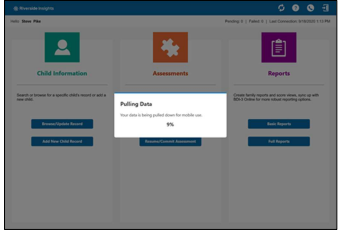
The Pulling Data message appears over the dashboard. When it reaches 100%, the MDS will be current with hierarchy, locations, and child information.
Commit Assessments
When you commit an assessment on MDS, it is loaded onto the platform and is no longer available on the MDS.
To commit one or more tests:
1. On the dashboard under Assessments, click Resume/Commit Assessments. The Resume/Commit Assessments page opens. The assessments on the MDS that have been saved are listed.
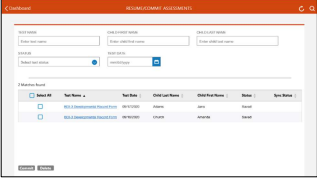
2. Enter search results and click the Search icon at the top left of the page if you want to narrow the list of assessments.
3. Click Select All to select all tests or select the tests you want to commit.
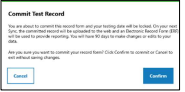
4. Click Commit at the bottom left of the page. The Commit Test Record message appears. The message informs you if you have not reached ceiling on all subdomains.
5. Click Confirm. The selected tests are committed and removed from the local
device