
To access the Organizations tab:
1. On the Organization Management menu select Locations.
The Locations page opens on the Hierarchy tab.
2. Click the Organization tab.
The Organization tab appears.
Note: This screen shows completed organization information. The initial screen will only show the root level.
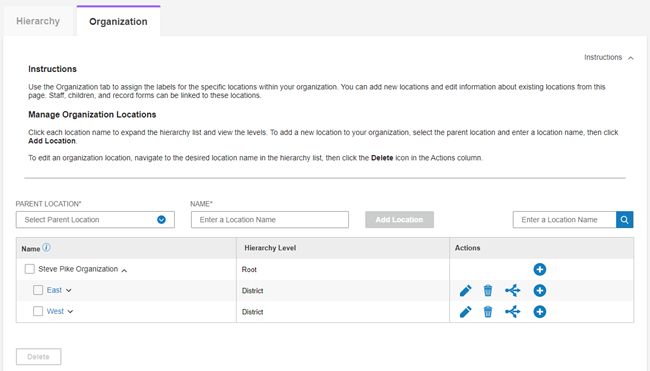
Page Detail
Fields at Top
-
*Parent Location - Select a parent location from the drop-down list when adding a location.
-
*Name - Enter the name of the new location.
-
*Add Location - Click to add the location entered in the Name field.
-
Enter a Location Name - Type some or all of a location name to search.
-
Search icon - Click to search for locations entered in the search field.
-
*You can also use the add icon in the actions column.
Columns and Lower Screen
-
Name - The names of locations by hierarchy level. Click the arrows to expand or collapse the list.
-
Hierarchy Level - The level of the location on this row.
-
Actions
-
Edit icon - Click to edit the name or to move this location.
-
Delete icon - Click to delete this location.
-
Allocations icon - Click to allocate record licenses to this location.
-
Plus icon - Click to add a location at the level below this location.
-
-
Delete - Click to delete the locations checked in the Name column.