
When you sign in to the BDI-3 Mobile Data Solution (MDS), the dashboard opens.
The MDS Dashboard Banner Sync data. This pulls hierarchy, locations, and child information down from the Riverside Score™ platform.
 Open the help system. It has complete information about all MDS functions.
 View Riverside Insights contact information for customer and technical support.
 Sign out of MDS.
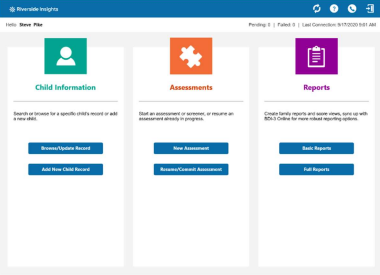
Dashboard
- Child Information – Add, find, and update child records.
- Assessments – Add an assessment, resume, or commit assessments.
- Reports – Run the Basic or Full Report.
Note: Click at the top left of any screen to return to the dashboard.
Child Records
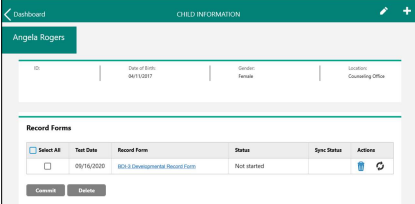
You can add and edit child records. On the Child Information page, the record forms assigned to the child appear.
To add a child record:
1. On the dashboard, Click Add New Child Record under Child Information. The Add Child Information page appears. There are three tabs on the Add Child Information page: General Information, Demographics/Programs, and User Identified Fields.
- They appear above the banner on a computer screen.
- On the tablet, you can swipe to the left or right or click the titles at the bottom of the page to move between tabs.
2. On the General Information tab, complete the *required
fields.
- First Name – Type the child’s first name.
- Last Name – Type the child’s last name.
- Gender – Select a gender
- Date of Birth – Type the date in the field with the mm/dd/yyyy format or click the calendar icon and select it.
- Location – Select the child’s location from the list.
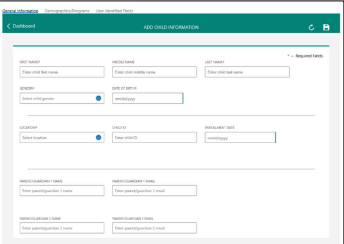
Any time after completing the required fields, you can click the Save  icon at the top right of the screen to save the record.
3. Complete any non-required fields on the General Information tab.
4. On the Demographics/Programs tab, add information about race, language, IEP or IFSP, free lunch, and funding sources.
5. On the User Identified Fields tab, you can add information not covered on the first two tabs.
- Code Name – Type a name for the code,
- Code Value – Type a value for the code.
6. Click the Save Icon . The record is saved. The Child Information page for the child opens.
The Child Information Page
Click the Edit  icon to open the Edit Child Information page to edit the child record.
Click the Add  icon to add and open an assessment for the child.
When record forms are added, they will be listed under Record Forms at the bottom of the
screen.
To find and edit a child record:
Note: You can also open the Edit Child page from the Child Information page.
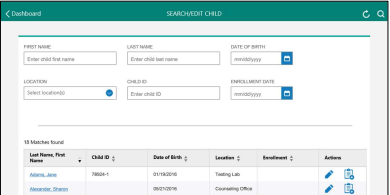
1. On the dashboard under Child Information, Click Browse/Update Record. The Search/Edit Child page opens.
2. Enter search criteria in the fields.
3. Click the Search icon at top right of the page. The search results are listed.
4. Click the Edit icon on the row of the child to open the Edit Child page.
5. Make updates to child information.
6. Click the Save icon at the top right of the page. The updates are saved. The Child
Information page opens.
To add and open a record form:
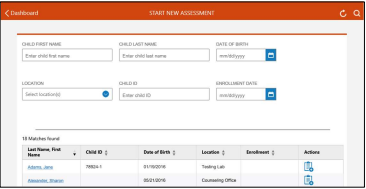
1. There are three ways to add and a record form:
- From the Start New Assessment page:
1. Select New Assessment on the dashboard under Assessments. The Start New Assessment page opens.
2. Enter search criteria or scroll down to find a child.
3. Click the Add Test Record  icon in the row for the child.
- On the Search/Edit Child page, click the Add Test Record icon on the row of the child in the list of search results.
- On the Child Information page, click the Add New Record icon at the top right of the page banner. The Assessment Configuration box opens.
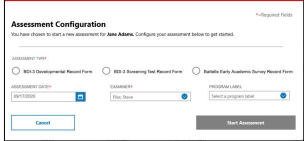
Note: All fields except for Program Label are required.
2. Select the Assessment Type.
3. Select the Assessment Date from the calendar.
4. Select the Examiner from the list.
5. (optional) Select a Program Label.
6. Click Start Assessment. The Assessment opens to the Test Session Overview.
Test Session Overview
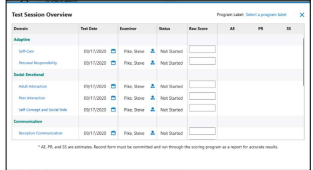
The Test Session Overview lists the domains and subdomains. Domains are the headings such as Adaptive and SocialEmotional. The subdomains are listed under the domains. You can click the name of a subdomain to open it and start scoring items.
On the test session overview, you can:
- Add or update the Program Label at the top right.
- Update the Test Date for a subdomain. Click the calendar icon and select a date.
- Update the Examiner for a subdomain. Click the Examiner icon and select from the list.
- Add Raw Scores. If you are giving the test with pencil and paper, you can type the score in on this page. If you are administering the electronic record form, click the subdomain and start scoring. Continue with the next section.
Administer the subdomains
On the Test Session Overview, click a subdomain name. The subdomain opens.
Navigating the subdomain
Save the record form. Record Tools – This icon opens a menu that you can use to:
- Test Session Overview – Return to the Test Session Overview.
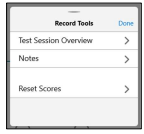
- Notes – Click to add notes. Select from:
o Item Level Note
o Subdomain Note
o Record Form Note
- Reset Scores – Select the subdomains to reset their scores to zero.
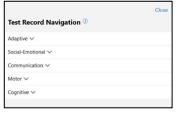
 Test Record Navigation – Click to open Test Record Navigation. Click the down arrows
to go to a subdomain or item within the subdomain.
Scoring the subdomain
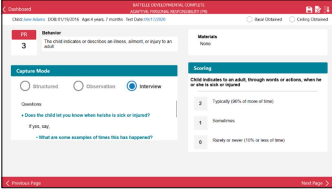
The subdomain opens to the question determined as the starting point by the child's age. The parts of the page are:
- PR – The subdomain abbreviation followed by the item number in the subdomain. - Behavior – A description of the behavior being tested.
- Capture Mode – How the test is being administered: Structured, Observation, or Interview. The examiner selects one. The instructions change based on the Capture Mode.
-If a picture appears in the area below Capture Mode, you can click it to enlarge it.
- Materials – For some items, materials are provided. For example, a timer is supplied for timed items.
- Scoring – Select the score for the item. To score the subdomain:
Note: As you score the subdomain, the responses are autosaved in the background.
1. Select the Capture Mode (Structured, Observation, or Interview).
2. Under Scoring, select a number. (Some items have a Correct or Incorrect option.)
3. Click Next Page at the bottom of the page to go to the next item.
Basal and Ceiling
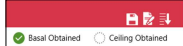
- Basal Obtained – For most assessments in BDI-3, the basal is reached when the first item is answered, or when a child scores a 2 (or a 1 for the BEAS) on three consecutive items.
- Ceiling Obtained – For most assessments in BDI-3, the ceiling is reach when the last item is answered, or when a child scores a 0 on three consecutive items. When ceiling is obtained, the Ceiling Obtained message appears.
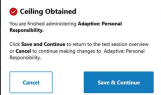
2. Click Save and Continue. You return to the Test Session Overview page. The scores are populated for the subdomain. Click Cancel to continue scoring.

3. Continue administering subdomains.
4. When you have finished administering subdomains, click the X at the top right of the Test Session Overview to close it.
5. Click the Save icon .
6. To commit the record form, see the next section.
Resume and Commit Assessments
To resume an assessment:
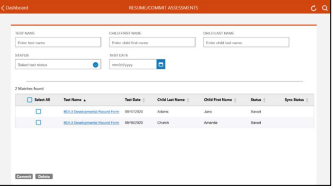
1. On the dashboard, under Assessments, click Resume/Commit Assessment. The
Resume/Commit Assessments page opens. Saved tests are listed.
2. Click a test to resume it.
Note: You can also resume a test by clicking it on the Child Information page.
To commit one or more tests:
1. On the Resume/Commit Assessments page, select the tests you want to commit.
2. Click Commit at the bottom left of the page. The Commit message appears. The message informs you if you have not reached ceiling on all subdomains.
3. Click Confirm. The selected tests are committed and removed from the local device.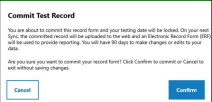
Reports
There are two types of reports on MDS.
-Basic Report – The basic report outputs the results of the selected test for the student. It shows the Test Session Overview page in report form.
- Full Report – This report can only be run when you are online. The Score and Family reports can also be run on the platform. It gives detailed information for a selected record form for a child.
To run the basic report:
Note: You can only run a basic report for assessments that are on your local device.
1. On the dashboard click Basic Reports under Report. The Basic Report page opens.
2. Complete the fields.
- Locations – Select one or more location.
- Child – The children that have saved record forms in the selected locations are listed. Select a child.
- Battery Type – The batteries administered to this child are listed. Select a battery type.
Note: If no battery was administered to this child, No results found appears in the field.
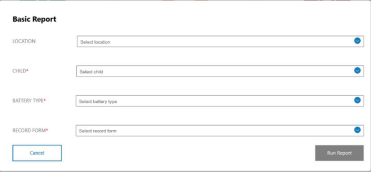
- Record Form – Select a record form.
3. Click Run Report or click Cancel to exit without running the report. The report opens.
To run the full report:
Note: The full report can only be run when you are online. Only tests that have been committed are available for the report. -On the dashboard click Full Reports under Report. The Create Report page opens.
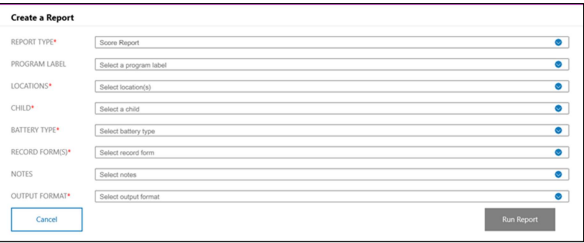
Note: The fields are the same for the Score and Family reports. The outputs vary slightly.
4. Complete the fields.
Note: These fields appear if you select the BDI-3 Developmental Record Form as the Battery Type.
- Report Type – Select Score Report or Family Report.
- Program Label (optional) – You can select a program label. Labels are created to track certain programs.
-Locations – Select one or more location. You will have access to the child records in the selected locations.
- Child – The children for the selected locations who have committed record forms are listed. Select a child from the list.
- Battery Type – The battery types that have been committed for the selected child are listed. Select a battery type.
- Record Form – Committed record forms are listed. Select a record form.
- Scores – This field appears only for the BDI-3 Developmental Record Form. Select the scores you want to view from the drop-down list.
- These three check boxes appear below Scores. Select the ones you want to include.
- Include domain, subdomain and area descriptors
- Item Scores
- Suggested activities
Notes (optional) – Select the notes you want to see. Item Score Notes only appears if you selected Item Scores in the previous field.
- Output Format – Select Word or PDF as the output format.
5. Click Run Report. The report opens in the output format (Word or PDF) selected.