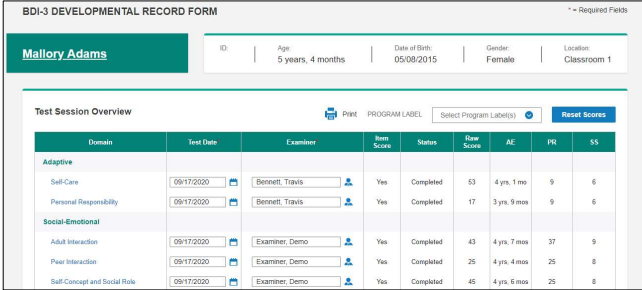
Many times, multiple examiners may need to assess the same child in different areas. In those cases, separate record forms for the same battery are used, as in the following example.
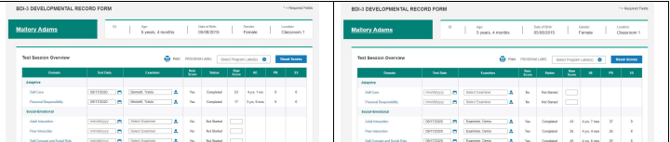
The two record forms can be merged so all the data is in one form.
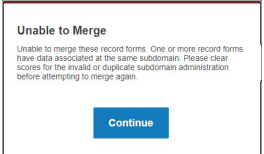
Note: Record forms cannot be merged if the same subdomain has been completed on both.
To merge record forms:
1. Open the Child Information page by:
- Clicking the name of the child under Child Activity on the dashboard.
- Selecting the child in search results:
a. Click Child Administration and select Search/Edit Child.
b. Enter search criteria and click Search.
c. Click the child’s name in the Name column.
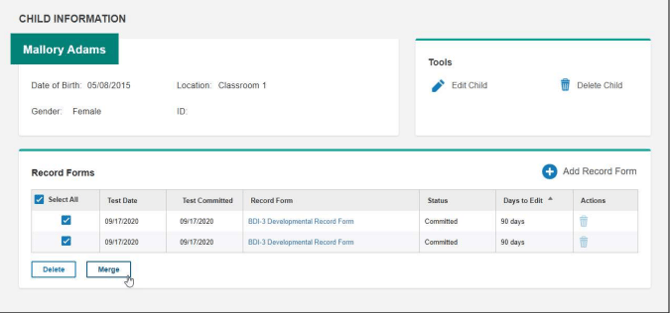
2. In the Select All column, click the check boxes for the records to be merged.
3. Click Merge.
If the records can be merged, the Merge Record Forms message appears.
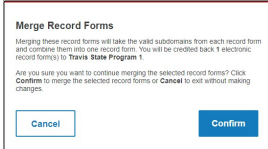
4. Click Confirm.
- The record forms are merged into one.
- If more than one committed form was merged, licenses will be returned.
If the forms cannot be merged, the following message appears. Click Continue.
The merged record forms combine the data from the two forms into one.