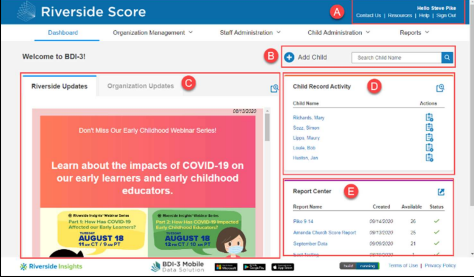
When you sign in to BDI-3 Riverside Score, you are at the dashboard. This guide shows
you how to navigate the dashboard.
A. Banner
B. Menu
C. Updates
D. Child Functions
E. Report Center
A – The Banner
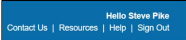
-Contact Us – Click to view contact information for customer and technical support.
- Resources – Click to access the Resources page where you can access resources such as
eLearning and technical manuals.
- Help – Click to open the online help for the platform. The help has complete instructions for all Riverside Score BDI-3 functions.
- Sign Out – Click to sign out of the platform and return to the Sign In page
B – The Menu
The menu items give access to all functions on the platform. The menu items you see depends on your level of access.
- Dashboard – Click to return to the dashboard from any page.
- Organization Management – Account Holders and Administrators see the Organization
Management menu, where they have access to administrative functions for locations, allocations, labels, and messages. -Staff Administration – Only users that have been assigned the privileges to add and manage staff will see the Staff Administration menu from which they add and manage staff.
-Child Administration – The Child Administration menu gives access to all child functions, including
adding and editing child records.
- Reports – Click to access the Report Center where you run and store reports.

C – Updates
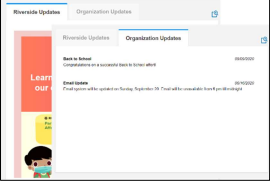
Messages from Riverside Insights and your organization appear on the dashboard.
Click the icon to expand the view.
-Riverside Updates – News and messages from Riverside Insights appear here.
- Organization Updates – Your organization's messages appear here. An administrator in your organization maintains the updates.
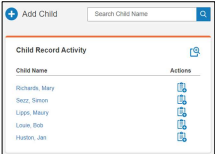
D – Child Functions on the Dashboard
On the dashboard, you can:
-Click the plus sign beside Add Child to open the Add Child Information page and add a child.
- Type in the Search Child Name box. As you type, matching
names are listed. Click a name to open the Child Information page.
- Click the search icon to open the Search/Edit Child page.
- Under Child Record Activity:
Click the icon to expand the view.
o Click a child name to open the Child Information page for that child.
o Click the Add Record Form icon to add one or more record forms for the child.
E – Report Center
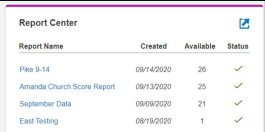
The Report Center lists the reports in your Report Library.
Click the icon to open the Report Library.
-Report Name – Name of the report.
- Created – The date the report was created.
- Available – How many days the report is still available. A report is available for 30 days after it was created.
- Status – The status in running the report. The checkmark means the report is completed.