
There are two ways to open the Allocations page:
-
On the Organization Management menu, select Allocations.
-
On the Organization tab of the Locations page, click the Allocations icon
 on the row for which you want to make allocations.
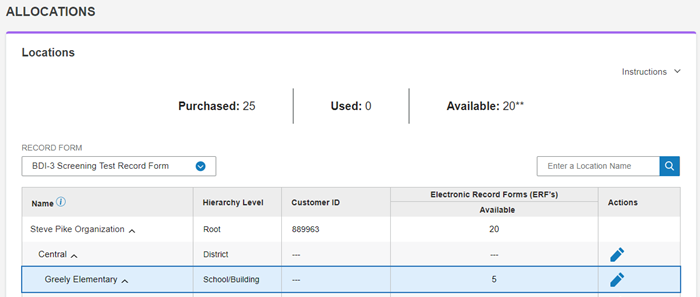
Page Detail
Top of Screen
-
Purchased - The number of record forms purchased by this organization.
-
Used - Record forms at this level that have been administered and committed.
-
Available - The number of record forms that are still available to be allocated.
-
Record Form - Select the record form to allocate.
-
Enter a Location - Type the name of a location and click the search icon
 to find it.
Columns
-
Name - The name of the location. Use the arrows to expand and collapse the list.
-
Hierarchy Level - The root and sub level for the location on this row.
-
Customer ID - The ID only appears for the root level.
-
Electronic Record Forms (ERFs) / Available - The number of record forms available for this location. In this example, the root level has allocated 5 records to the Greely Elementary school.
-
Actions - Click the Edit icon
 to allocate record form licenses.