This guide takes you through the process of adding and scoring record forms in the following steps.
I. Add record forms
II. Open the record form
III. Complete the Test Session Overview page
IV. Score the subdomain
V. Commit the record form
I. Add record forms
1. Do one of the following:
- Click the Add Record Form icon in a list of search results on the Search/Edit Child page or under Child Record Activity on the dashboard.
- Click the plus sign on the Child Information page. The Add Record Form box opens.

2. Select one or more record forms from the Record Form drop-down
list.
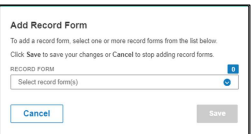
3. Click Save.
-If you added one record form, the record form opens.
- If you added multiple record forms, the Child Information page opens. The record forms are listed.
II. Open the record form
- If you added one record form, the record form opens.
- On the Child Information, click a record form in the in the Record Form column. The record form opens to the Test Session Overview.
III. Complete the Test Session Overview page
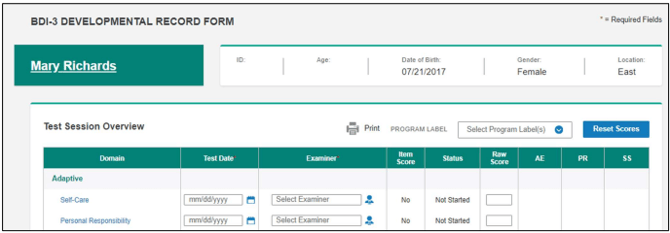
1. (Optional) Select a Program Label.
2. Select a Test Date and Examiner. You can select the Test Date and Examiner for one or multiple subdomains: The Test Date and Examiner are required for each subdomain.
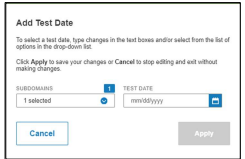
a. Click the calendar or person icon. The Add Test Date or Assign Examiner box opens.
b. In the Subdomains field, select the subdomains where you want to apply the date or examiner.
c. In the Test Date/Examiner field, select the date or examiner.
d. Click Apply. The date or examiner appears for the selected subdomains.
3. To add scores, do one of the following:
- Enter scores in the Raw Score column if you were giving the assessment with pen and paper.
- Click the subdomain in the Domain column to score the items in the subdomain. Go to IV. Score the subdomain.
Note: If you have not saved data on the Test Session Overview, the Data Not Saved message appears. Click Save and Continue.
IV. Score the subdomain
When you click the subdomain name on the Test Session Overview page, the subdomain opens.
Navigating the Subdomain

The banner on the subdomain has the following information and tools.
- Adaptive (ADP): Self Care (SC) – The subdomain that is currently open. Click the down arrow to navigate to the Test Session Overview or other domains and subdomains.
- Examinee __________ – The name of the examinee. You can click to open the Child Information page.
- Not Started – The status of the test. It will be changed to Saved or Committed as you perform those actions.
- Notes – Open the window to type notes for this subdomain. Click Save to save the notes. 400 characters are allowed.
- Print – Print the subdomain.
- Reset Scores – Reset scores for this subdomain to zero. A confirmation page opens when you click the button. Click Reset Scores or Cancel.
- Basal Obtained – The circle will become green and show a check mark when you have reached basal. Basal is obtained after three consecutive 2 scores or, sometimes, when you answer the first item. - Ceiling Obtained – The circle becomes red and shows a check mark when three consecutive zeroes have been recording or the last question has been answered.
- Save – Click to save the data entered in the record.
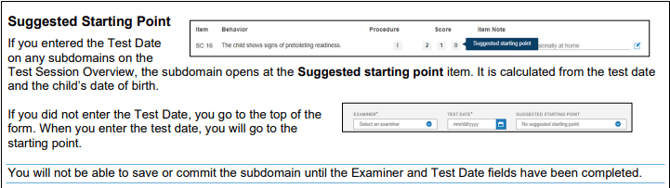
- Commit – Click to commit the record. Suggested Starting Point. If you entered the Test Date
on any subdomains on the Test Session Overview, the subdomain opens at the Suggested starting point item. It is calculated from the test date and the child’s date of birth. If you did not enter the Test Date, you go to the top of the form. When you enter the test date, you will go to the starting point.
Note: You will not be able to save or commit the subdomain until the Examiner and Test Date fields have been completed.
To score the items:

1. Select a Procedure (S – Structured, O – Observation, I – Interview).
2. Select a Score.
3. (optional) Type in an Item Note.
Note: Click the Edit icon to edit a note.
Basal and Ceiling
- Basal Obtained appears automatically, usually when three consecutive 2s have been recorded. It is indicated at the top of the screen.
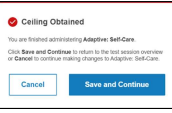
- Ceiling Obtained appears when three consecutive zeros have been recorded or you completed all the items.
4. When the Ceiling Obtained message appears, click Save and Continue. You return to the Test Session Overview.
V. Commit the record form
When you commit a record form:
- A record form is used in your organization’s allocation of record forms.
- The record form data becomes available for reporting.
- The record form is available for editing for 90 days.
To commit the record form:
1. There are two places to commit a record form.
- Click Commit at the top right of a subdomain.

- Click Commit at the bottom of the Test Session Overview.
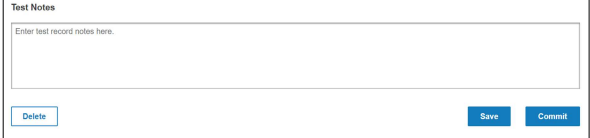
Note: You can also add test notes at the bottom of the Test Session Overview.
- If you have not completed required information, the missing fields will be highlighted on the screen.
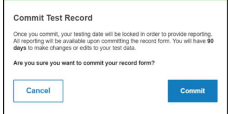
- If all required information has been completed, the Commit Test. Record message box appears.
2. Click Commit. The Commit Successful message appears.
3. Click OK.