To open the Locations page:
On the menu, click Staff Management and select Locations. The page opens on the Hierarchy tab.
There are two tabs on the Locations page:
- Hierarchy – Set up the levels of your organization, such as district, school, and classroom.
- Organization – Add the actual locations to the appropriate level. For example, East and West districts and City Park and Webb schools.
Hierarchy
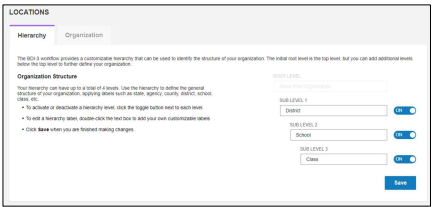
On the Hierarchy tab, you maintain the three sub levels that are available under the root level that is assigned when you receive the BDI-3 platform. Name the sub levels to suit your organization.
*Note: The root level name is assigned by Riverside Insights. Contact customer support if you want it changed.
To change a sub level name:
1. Click in a sub level field and type over the name.
2. Click Save. The Changes Saved message appears.
3. Close the message. The new name for the sub level is set.
To deactivate a sublevel
Note: When you deactivate a sub level, the locations assigned to that sub-level are not deleted. They are moved up to the next higher level.
1. Click the ON switch beside the sub level you want to deactivate. The switch toggles to OFF. The Remove Hierarchy Level message appears.
Note: If you click any sub level with levels below it, the lower levels will also be deactivated.
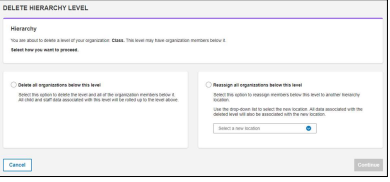
2. Click Cancel to exit or Continue to continue. If you click Continue the Delete Hierarchy Level page opens.
3. Click one of the two:
-Delete all organizations below this level. The sub level will be deactivated. Locations and child
records will be rolled up to the sub level above.
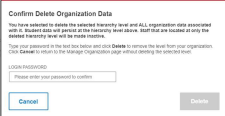
-Reassign all organizations below this level. Select the location to which you want the levels to be moved on the Select a new location drop-down list. 4. Click the Continue. The Confirm Delete Organization Data or Confirm Reassign Organization Data box appears.
5. Type your BDI-3 password and click Delete or Reassign.
6. Click Save. The Save message appears.
7. Close the Save message. The sub levels are deactivated.
Locations
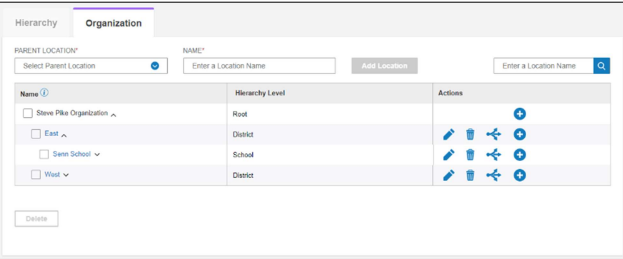
On the Organization tab of the Locations page, you can add, edit, move, and delete locations.
To add a location:
There are two ways to add a location to a parent location:
1. In the Parent Location field, select the location to which you want to add the location as a sub level location.
2. In the Name field, type the location name.
3. Click Add Location. The location is added.

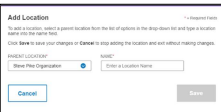
1. Click the Add icon on the row of the parent location. The Add Location box opens. In the Parent Location field, the location on the row you selected appears. You can select another one.
2. Type the name in the Name field.
3. Click Save to save the new location or Cancel to exit without saving. The
location is added.
To find a location:
1. Enter search criteria in the Find a Location Name box.

2. Click the Search icon . The location is highlighted in the list of locations. To edit (rename or move) a location:
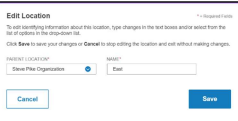
3. On the row of the location you want to edit, click the Edit icon. The Edit Location box opens.
Do one or both or the following:
- To move the location, select a location from the Parent Location list.
- To rename the location, type the name in the Name field.
4. Click Save. The changes are saved.
To delete locations:
You can delete one or more locations. The child records in those locations will be moved to the location in the next higher sub level.
1. Navigate to the location(s) you want to delete. You can delete one or multiple locations.
- To delete one location, click the Delete icon on the row of the location you want to delete.
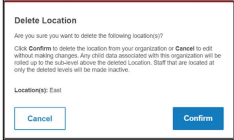
- To delete multiple locations, select the locations in the Name column checkbox and click Delete at the lower left of the screen. The Delete Location box appears. The locations to be deleted are noted.
2. Click Confirm to delete or Cancel to exit without deleting. The location is deleted.