This guide takes you through the steps for adding, editing, and importing child records.
Child Functions on the Dashboard
On the dashboard, you can:
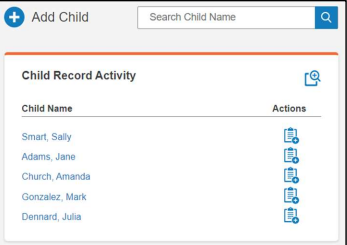
- Click the plus sign beside Add Child to open the Add Child Information page and add a child.
- Type in the Search Child Name box. As you type, matching names are listed. Click a name to open the Child Information page.
- Click the search icon to open the Search/Edit Child page.
Under Child Record Activity:
- Click a child name to open the Child Information page for that Child.
- Click the add record form icon to add one or more record forms for the child.
To add a child:
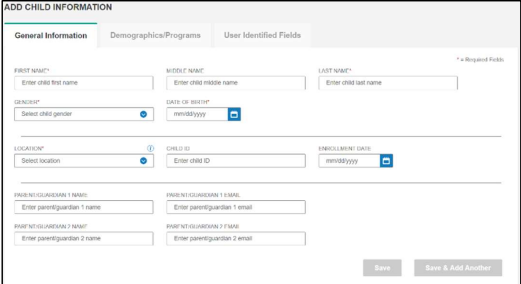
1. On the menu, click Child Administration and select Add Child or click the plus sign beside Add Child on the dashboard. The Add Child page opens on the General Information tab.
2. Complete the required fields on the General Information tab:
- First Name – Type the first name.
- Last Name – Type the last name.
- Gender – Select a gender from the drop-down list.
- Date of Birth – Click the calendar icon and select a date or type the date with the mm/dd/yyyy format.
- Location – Select a location from the drop-down list.
Note: When you have completed the required fields, the Save and Save & Add Another buttons are active. You can save the record.
3. Complete additional fields on the General Information tab.
4. Click the Demographics/Programs tab. Complete fields as needed. If you click IFSP or IEP, additional fields appear.
5. Click the User Identified Fields tab. Type a code and value. You can use the fields and codes for data not covered on the first two tabs.
6. Click Save to save and open the Child Information page or Save & Add Another to save this record and return to the Add Child Information page.
The Child Information Page
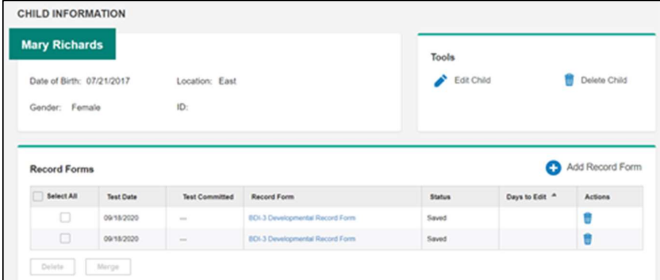
The Child information page opens when you add an individual child, when you click the child’s name under Child Activity on the dashboard or in search results, or when you type into the Search Child Name field on the dashboard. On the Child Information page, you can:
- Click Edit Child to open the Edit Child Information page.
- Click Delete Child to delete the child record.
- Under Record Forms: click Add Record Form to add one or more record forms, click a record
form to open it, delete or merge record forms
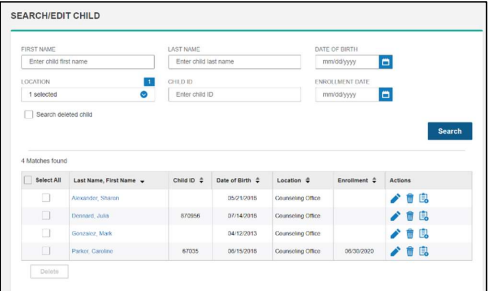
To search for a child:
There are two ways to find a child record:
On the dashboard, type in the Search Child Name box. As you type, matching names are listed. Click a name to open the Child Information page.
1. There are two ways to open the Search/Edit Child page.
- On the menu, click Child Administration and select Search/Edit Child.
- Click the Search icon on the dashboard.
2. Type the search criteria in the fields.
Note: To find only deleted child records, click the Search deleted child checkbox.
3. Click Search. The search results are listed.
To edit a child record:
1. There are two ways to open the Edit Child Information page.
- Click the Edit icon in the Actions column of search results.
- Click Edit Child under Tools on the Child Information page.
2. Make changes to the information.
3. Click Save.
To delete a child record:
1. Click the Delete icon in a list of search results or click Delete Child on the Child Information page. The Delete Child message appears. 2. Click Confirm to delete the child record or click Cancel to exit without deleting the child record.
Import Children
In BDI-3, you can upload child records on an Excel spreadsheet following the data requirements for each field.
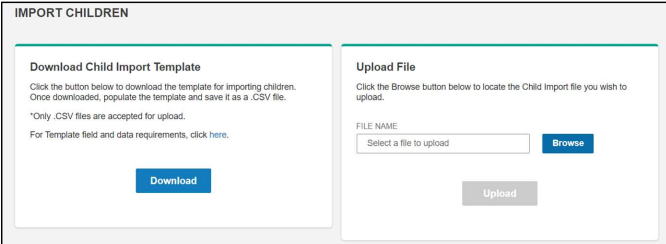
To import child records:
1. On the menu, click Child Administration and select Import Child Roster. The Import Children page opens.
Note: When you have saved the template once, you can skip to step 8 and upload
the file. 2. Click the here link above the Download button to open a document with data requirements. You can use it as reference when filling in the data.
3. Click Download to download the template.
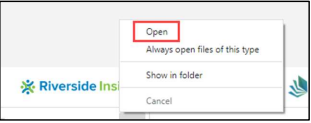
4. In the lower left of the screen, click Open to open the downloaded Excel spreadsheet.
5. (Optional) Save the document to a location where you can access it to upload it.
6. Complete the information on the Excel spreadsheet following the formatting instructions on the document you opened in step 2.
7. Save the Excel spreadsheet.
8. Click Browse.
9. Locate and open the completed spreadsheet. The file appears in the File Name field.
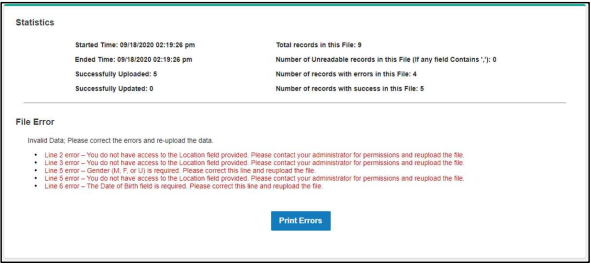
10. Click Upload. Statistics appear at the bottom of the screen, showing the number of records
uploaded and errors that kept records from being uploaded.
Note: You can click Print Errors to open a document that lists the errors. You can save the
document as a PDF file.
11. Correct any errors and repeat steps 8 – 10.