
1. Sign In to Riverside Score
Begin by signing into your Riverside Score account.
On the WJ V Dashboard, launch your assignment in administration mode by scanning the QR code or using the link and unique testing session ID.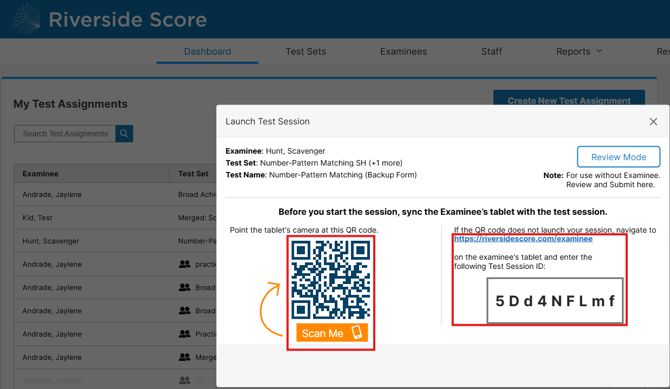
2. Invalidating the Test
Once the test has been "completed," you will have options to end the test (Timed tests will need the timer to run out to get to this point). Click on the "invalidate test" 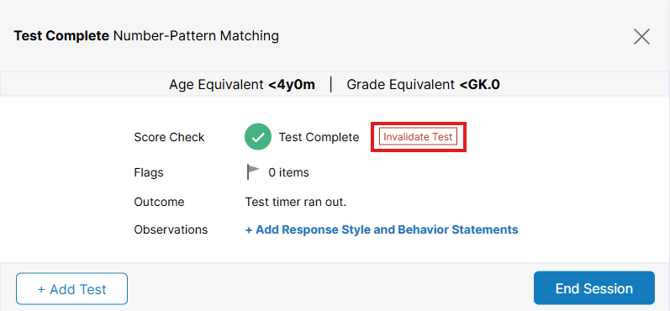
3. Adding backup tests
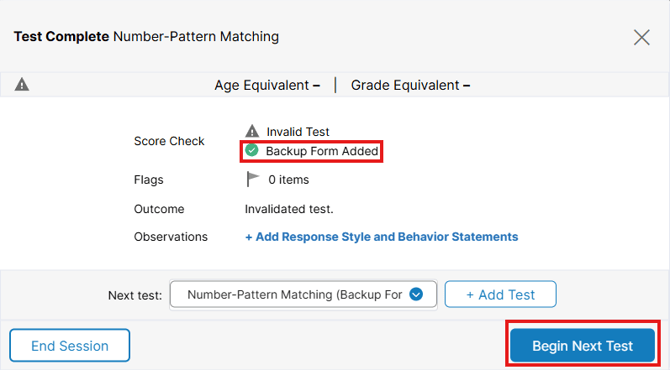
Once a test has been invalidated (manually or by the system) you will have the option to add a backup form if needed/wanted. Click on the "add backup form," you will be notified that the form has been added then prompted to being the test.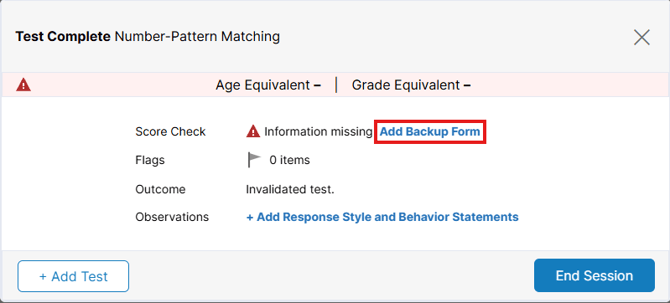
⚠️Important Notes
- There is not a backup form for all tests, our development team is working on adding more continuously.
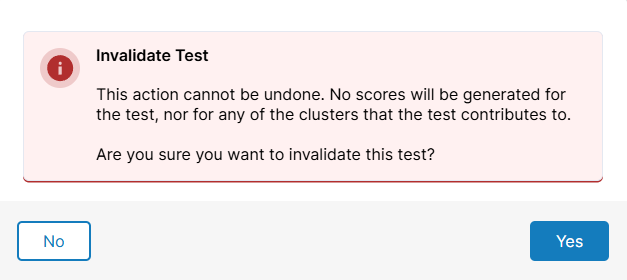
- If a test is invalidated, there is no score generated for that test.
- There is not a way to undo an invalidated test whether it's by the system or manually invalidated.